Pro & One Series Mobile Dock
VITURE Pro Mobile Dock
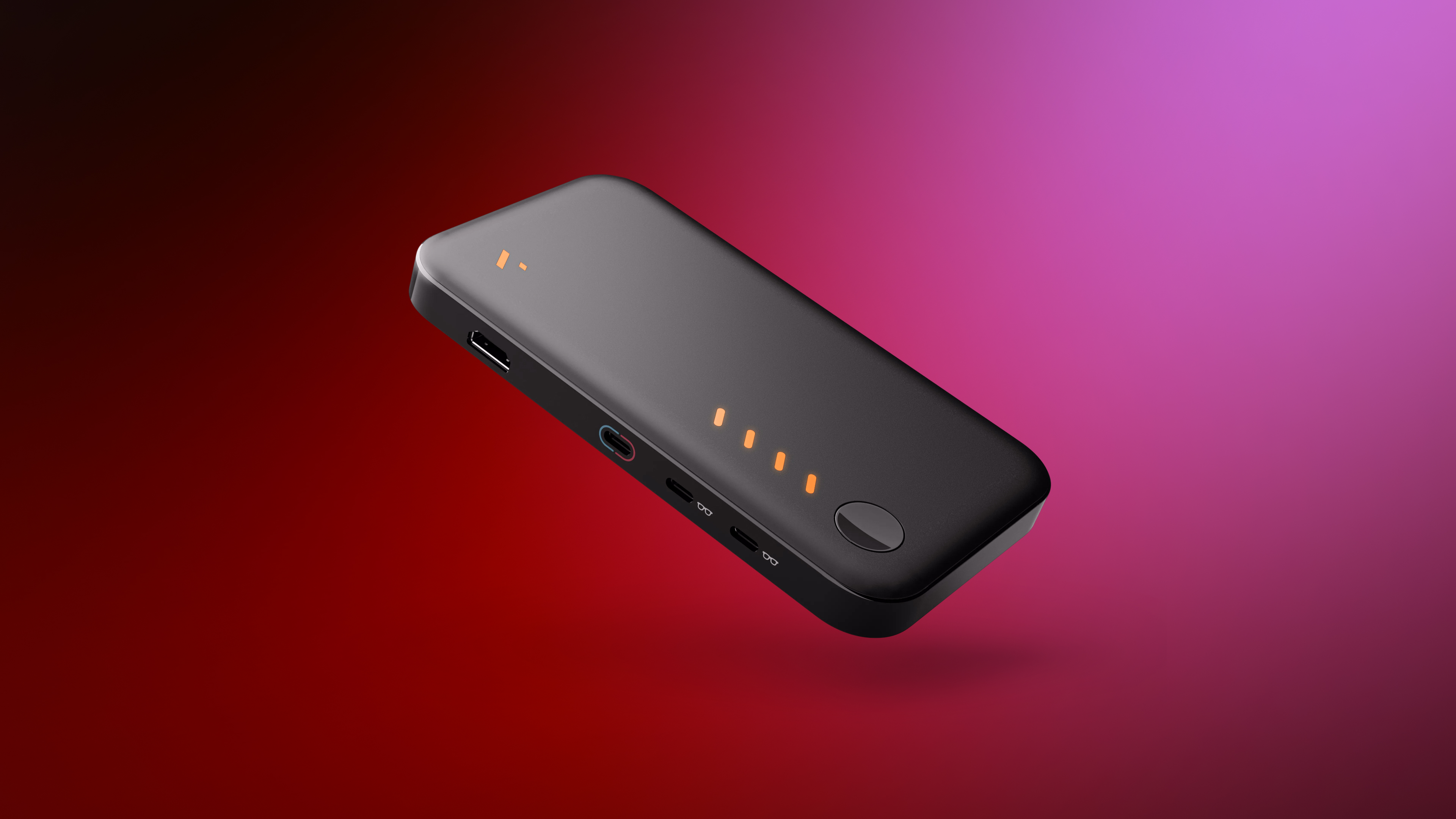
The VITURE Pro Mobile Dock is a must-have accessory for extending your playtime and is the only device capable of making any HDMI or USB-C device shareable in XR, including Nintendo Switch, HDMI TV sticks & consoles, and most USB-C smartphones.
Lighter and sleeker than ever, the Pro Mobile Dock now features support for 3D content, boasts an extended battery life — up to 20 hours on some devices — and is even compatible with external USB-C displays (including traditional monitors and other display glasses).
VITURE Pro Mobile Dock and VITURE One Mobile Dock have the same battery capacity, but the Pro Mobile Dock has better discharge efficiency. When connected to handheld consoles such as Nintendo Switch, Steam Deck, and ROG Ally, it allows you to play for longer.
The Pro Mobile Dock now supports Switch 2! For full details on firmware updates and compatibility, please refer to Updating Your Pro Mobile Dock. You can also check the full firmware release history for additional details.
What's in the Box
- VITURE Pro Mobile Dock
- USB-C Cable
บทความแนะนำ
VITURE One Mobile Dock
Extend your playtime and make any HDMI device compatible with VITURE XR Glasses.
Originally designed as a way to dock the Nintendo Switch on the go, the Mobile Dock allows connections with any HDMI wired connection, including the Nintendo Switch/Switch OLED, computers, TV sticks, legacy consoles, and more.
With a 13,000 mAh power bank and co-op/shared screen capabilities to boot, this is a must-have accessory for your XR setup.
What's in the Box | VITURE One Mobile Dock
- VITURE One Mobile Dock
- USB-C Cable
Compatibility Notes For The Beast XR Glasses
Pro Mobile Dock
Version Requirements
Minimum Beast XR Glasses version: 0.01.012_20260203 Click here to update
After Version 0.01.026_20260716, it supports:
- Up to 3840 × 1080 resolution in Side-by-Side mode at 60Hz for an immersive 3D experience.
- Up to 1920 × 1080 resolution at 120Hz for silky-smooth 2D motion.
Minimum Pro Mobile Dock version: 1.03.0.05_20260127 Click here to update
Unsupported Features
Please Note When used with The Beast XR Glasses, does not support the following features of The Beast XR Glasses:
- UltraWide Mode
One Mobile Dock
Not compatible with The Beast XR Glasses.
Turorial Video
How to Connect
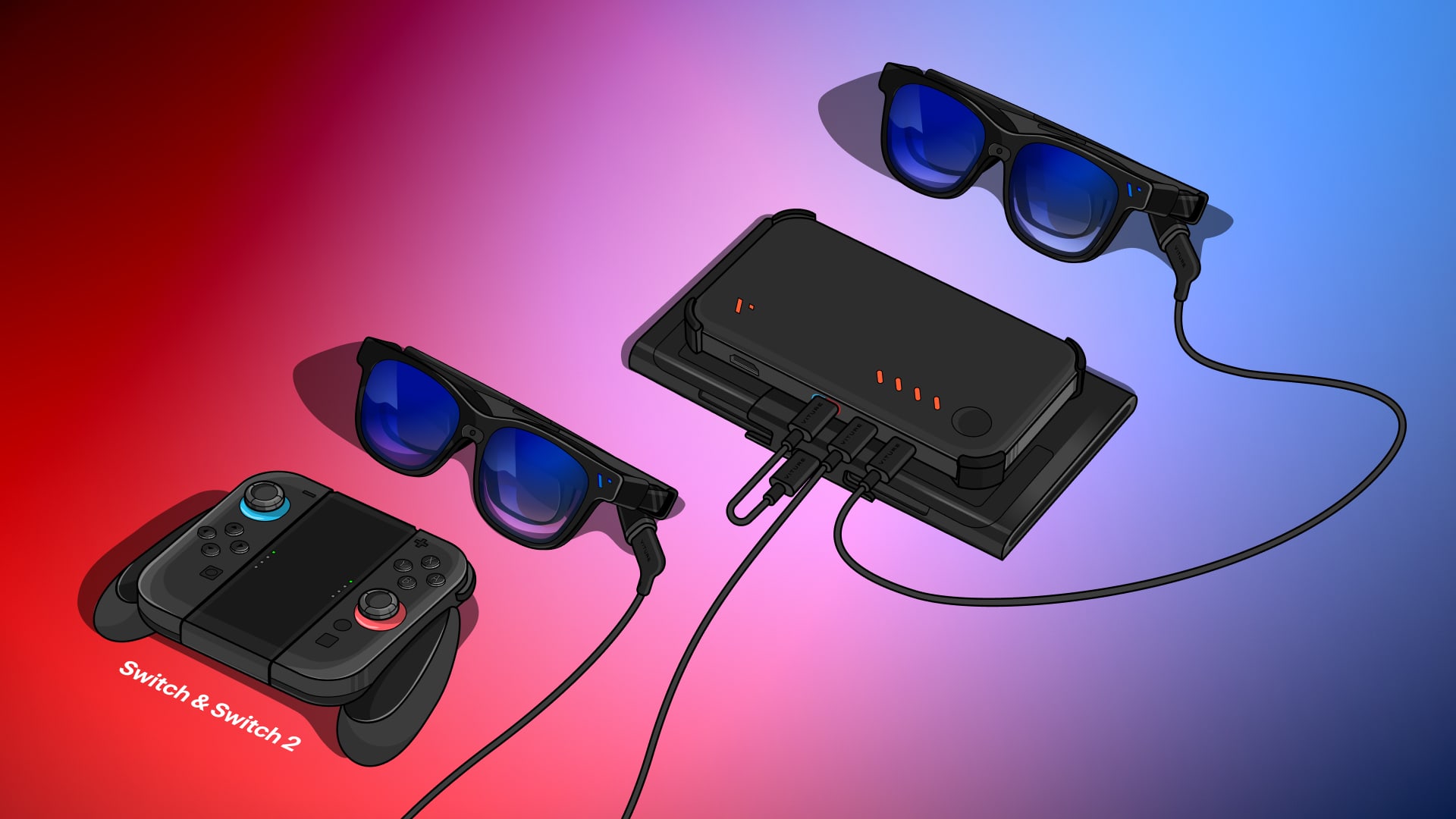
Play with Nintendo Switch 2 & Switch
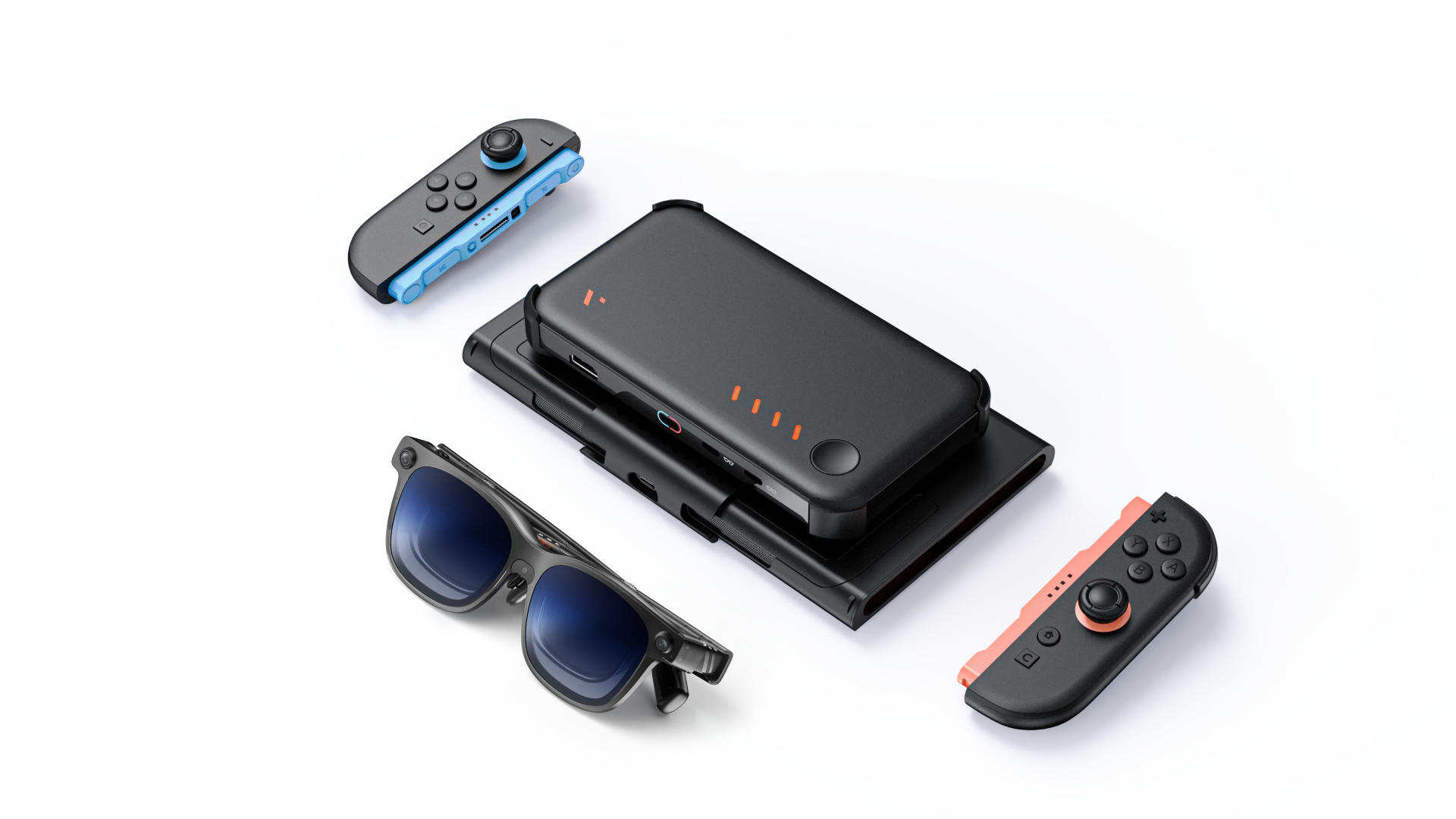
The Pro Mobile Dock supports Nintendo Switch 2 starting from firmware version ‘1.03.0.03_20250709’. If your dock is running an earlier version, please update it first. For full details on firmware updates and compatibility, please refer to Updating Your Pro Mobile Dock.
The Pro Mobile Dock is the perfect companion for your Switch, whether you're using the Switch 2 or the original Switch. Both models connect to the Pro Mobile Dock in the same way.
It lets your Switch or Switch 2 enter TV mode and output to your XR glasses for big-screen play, while the built-in battery provides additional power for longer play sessions.
Please note that the VITURE One Mobile Dock is not yet compatible with the Switch 2.
The Mobile Dock powers on automatically when it detects input from your Switch.
To connect your Switch with the Mobile Dock:
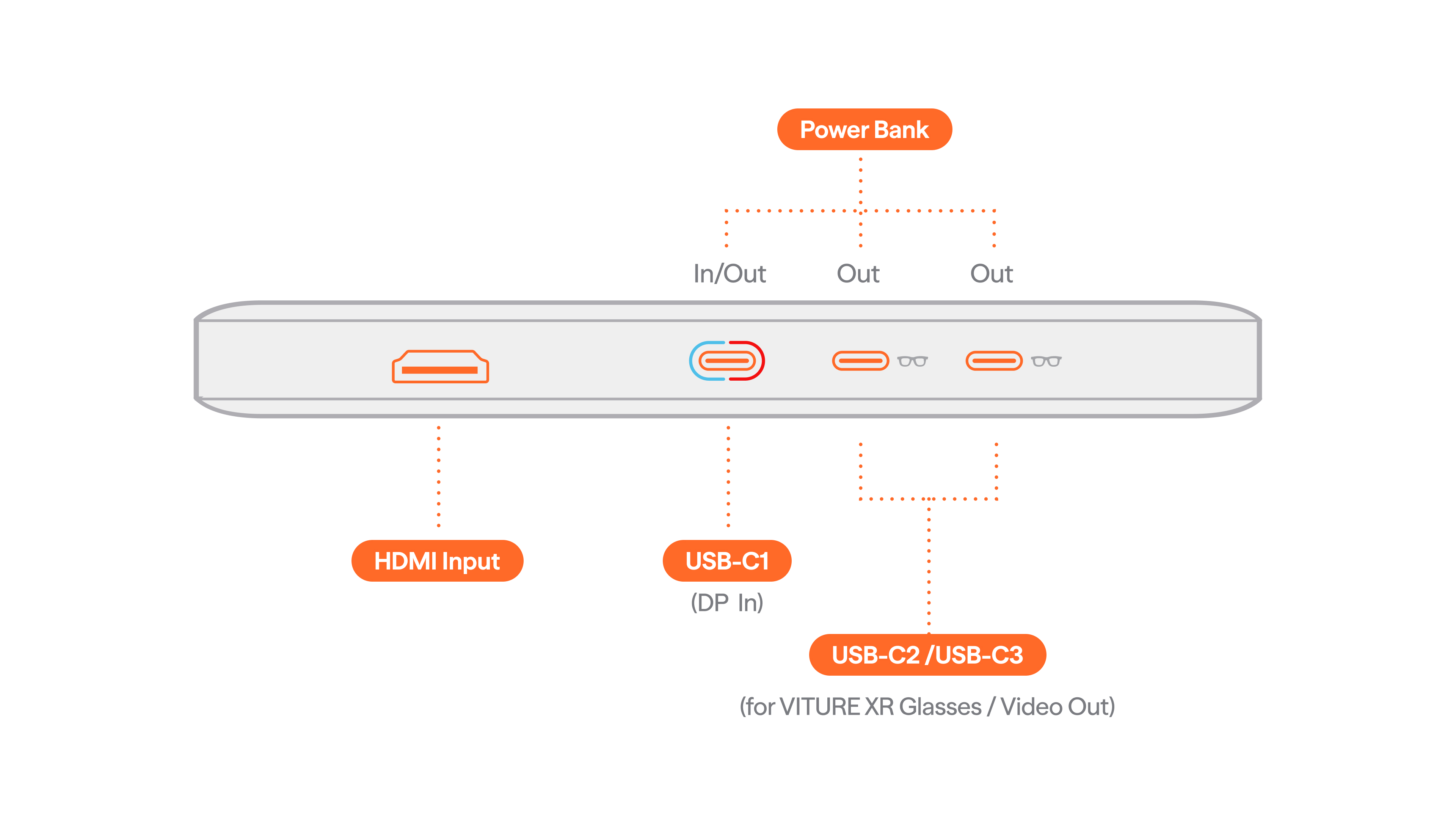
- Plug one end of the USB-C cable into your Switch, and the other end into the USB-C1 port on the Mobile Dock (the port with the blue and red ring).
- Connect your XR Glasses to the Mobile Dock using the included cable of the XR Glasses.
- Wake your Switch from sleep mode — and enjoy your game!
Note:
When using the Switch with the Mobile Dock, you’ll need to either:
- Detach the Joy-Con controllers; or
- Use a wireless controller such as the Nintendo Switch Pro Controller.
Additional Notes
Due to the Pro Mobile Dock's power output limit (up to 20W), certain demanding games cannot reach full TV mode performance on Switch 2, so the frame rate and image quality available in TV mode cannot be achieved.
Known affected games: Metroid Prime 4: Beyond
To play these games at full TV mode performance, place the Switch 2 in the official Nintendo Switch 2 dock and connect it to the Pro Mobile Dock via HDMI.
บทความแนะนำ
TV Stick
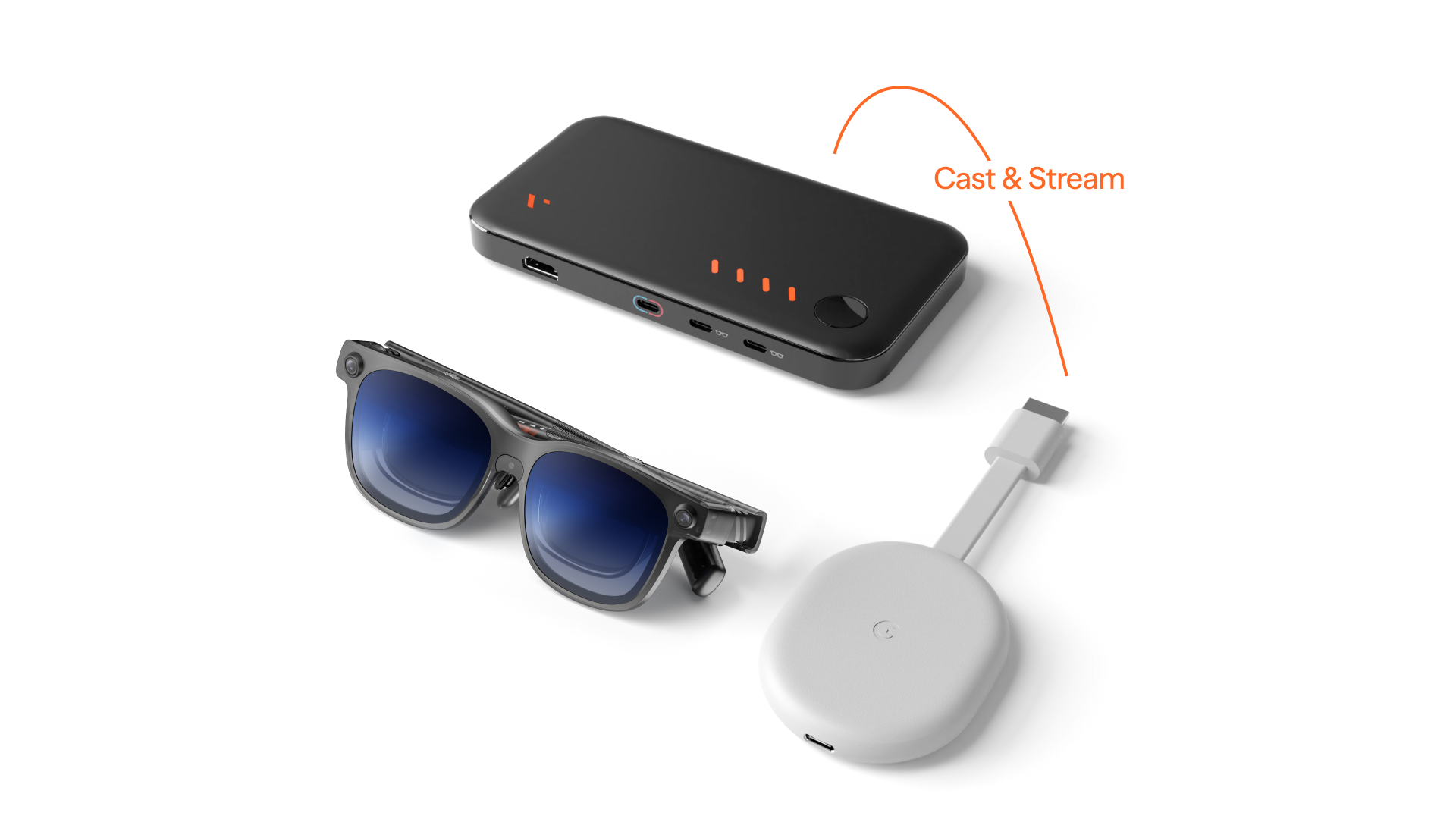
To use a TV stick ( Chromecast, Fire TV Stick, and Roku Streaming Stick) with the Mobile Dock, follow these steps:
- Plug your TV stick into the HDMI port on your Mobile Dock.
- Connect the XR Glasses to the USB-C2 or USB-C3 port with the USB-C to magnetic connector cable.
- Press and hold the button on your Mobile Dock until the LED indicator lights up.
Handheld Consoles
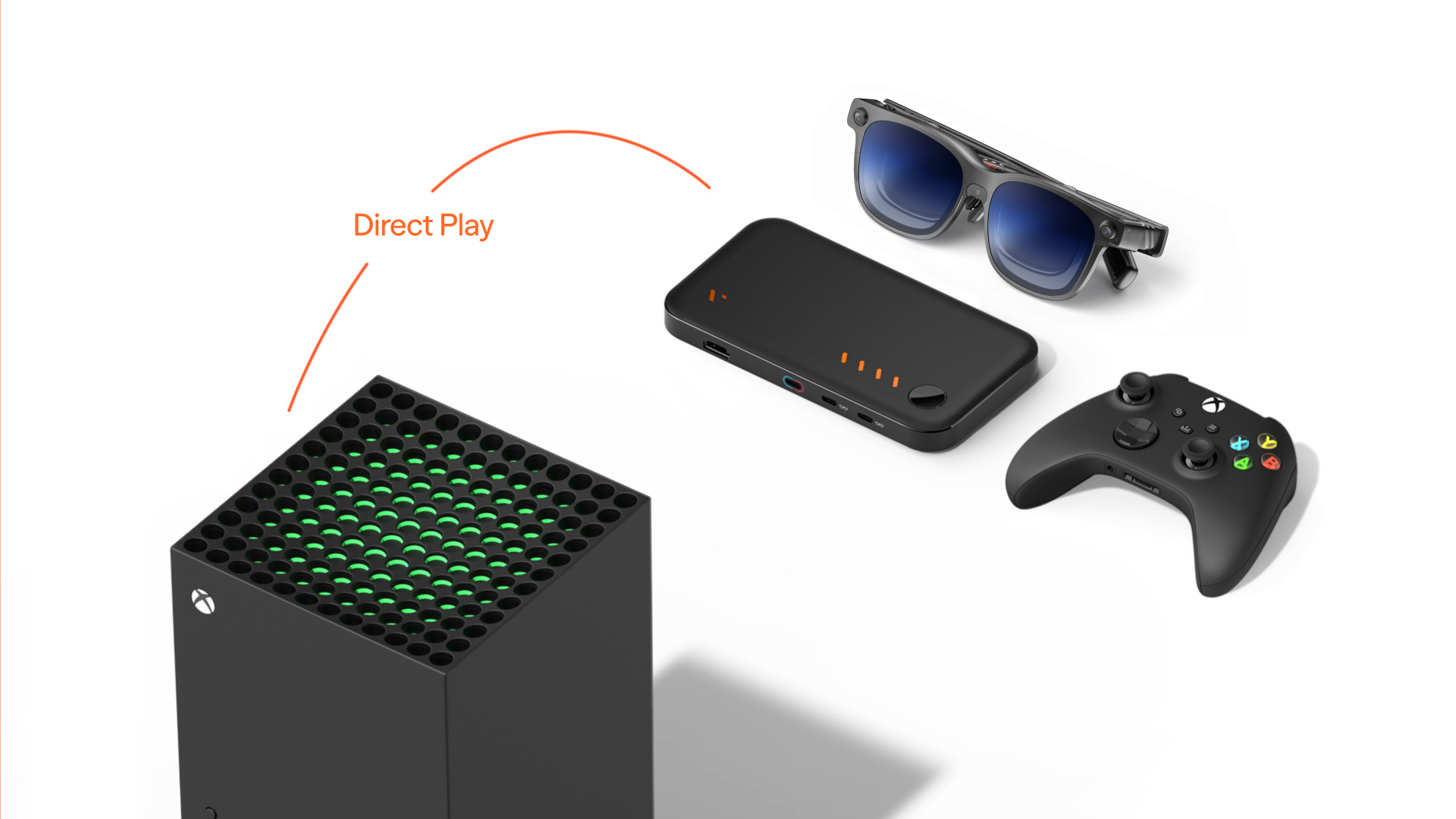
To play a handheld console like ROG Ally, Steam Deck, GPD Win 4, and AYANEO 2 with the Mobile Dock, follow these steps:
- Plug one end of the USB-C cable into your handheld console and the other end into the USB-C1 port on the Mobile Dock.
- Connect the XR Glasses to the USB-C2 or USB-C3 port with the USB-C to magnetic connector cable.
- Power on your handheld game console and enjoy!
If you would like to play Steam Deck with the Mobile Dock, see how to attach or remove the Mobile Dock Mount.
Standard Blu-ray Players
- Connect your Blu-ray player's HDMI output to the HDMI port on the Mobile Dock using an HDMI cable.
- Connect your XR Glasses to the USB-C2 or USB-C3 port on the Mobile Dock using the USB-C cable.
- Play your DVD collection.
Important Notes:
- VITURE Pro Mobile Dock and VITURE One Mobile Dock's HDMI ports do not support 4K resolution. You can connect a standard Blu-ray player via HDMI to enjoy your DVD collection.
- VITURE Pro Mobile Dock and all XR Glasses models are not compatible with 3D Blu-ray players that output frame-packed 3D or over-under 3D formats.
Buttons and Ports
Power On / Off
The Mobile Dock turns on automatically when it detects USB-C1 input.
You can also press and hold the one and only button on the Mobile Dock to turn it on or off.
Ports
Play with Friends & Family
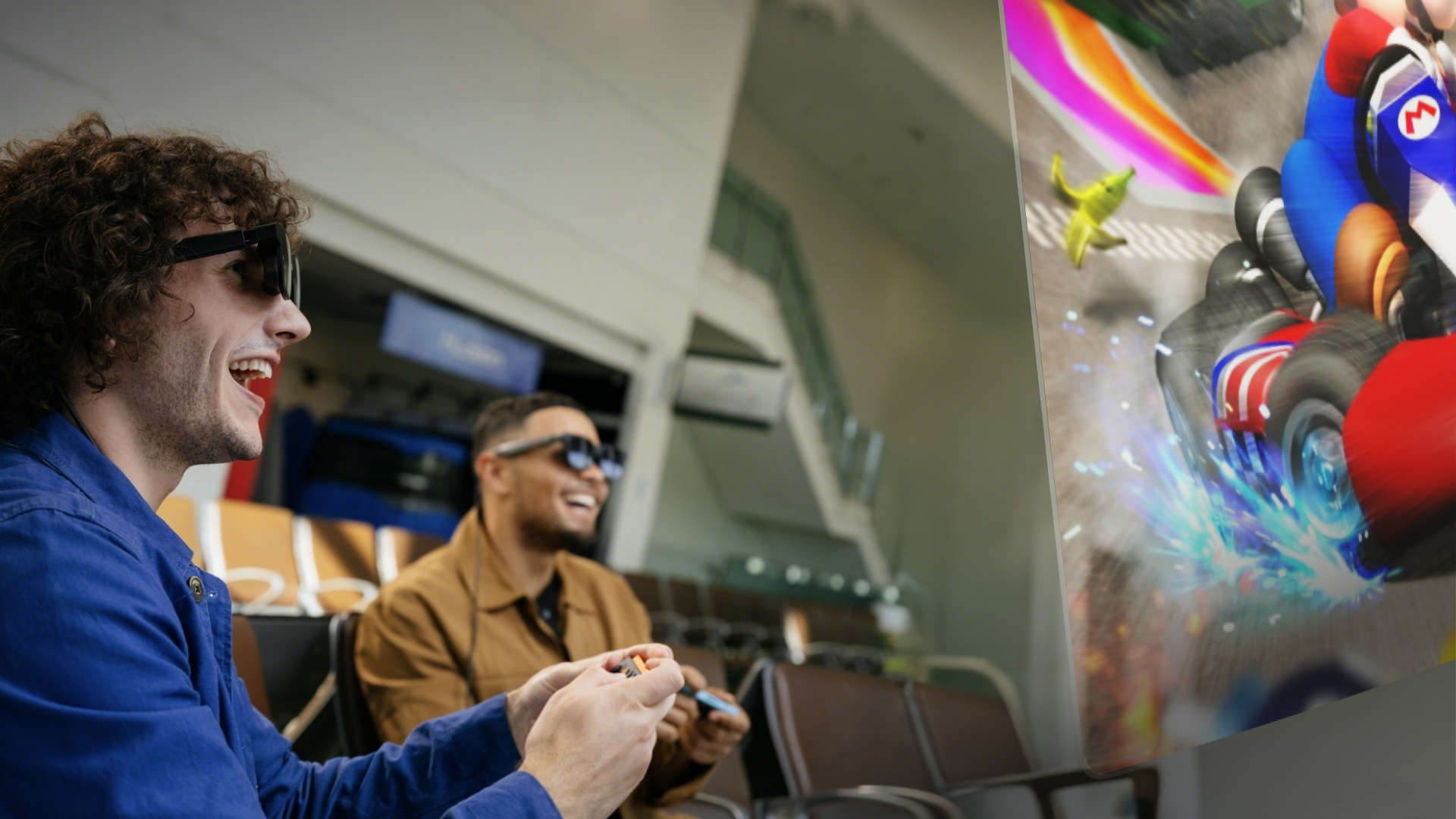
The Mobile Dock has two USB-C ports (USB-C2 and USB-C3) for connecting VITURE XR Glasses — perfect for split-screen cooperative multiplayer games like It Takes Two.
You can share your favorite games and movies with your friends and family by simply connecting two pairs of XR Glasses.
Battery
Battery Life Extension
The Mobile Dock provides extra power to your devices so that you can play them for longer.
VITURE Pro Mobile Dock's battery life depends on the device it's providing extra power to:
- Up to 8 hours with Nintendo Switch.
- Up to 4 hours with Steam Deck.
- Up to 20 hours with HDMI devices.
VITURE One Mobile Dock's battery life depends on the device it's providing extra power to:
- 6 hours with Nintendo Switch.
- 3 hours with Steam Deck.
- 12 hours with HDMI devices.
Charge Your Mobile Dock
To charge your Mobile Dock, connect the Mobile Dock (USB-C1 port) to a power outlet using the USB-C cable (included) and a third-party USB power adapter.
The maximum charging power is limited to 20W. The Mobile Dock is expected to be fully charged in 2.4 hours.
Power Bank
The Mobile Dock is also a 13,000mAh power bank able to charge 3 devices at the same time. Simply connect your devices to any of the three USB-C ports to charge them.
The USB-C1 port supports 20W output power, which can charge your MacBook. In addition, the USB-C2 and USB-C3 ports are also ideal for charging your headphones, making it a great tool to carry with you on the go.
Update Your Mobile Dock
Update VITURE Pro Mobile Dock
If you're experiencing issues with your Pro Mobile Dock, we recommend updating the firmware to ensure optimal performance.
Firmware ’1.03.0.0320250709‘ or later is required for Nintendo Switch 2 support; the latest version, ‘1.03.0.0520260127’, additionally adds support for The Beast XR Glasses while remaining compatible with Nintendo Switch 2, Nintendo Switch, and all previously supported devices.
Firmware Update Requirements
To ensure a successful update, please follow these guidelines:
- Use the Correct Cable: Use the original USB-C cable that came with your Pro Mobile Dock. If unavailable, a Thunderbolt 3 USB-C cable is a suitable alternative. Other USB-C cables may not support firmware updates.
- Check USB-C Port Compatibility: Confirm that your computer's USB-C port supports DisplayPort Alternate Mode (DP Alt Mode), which is required for the update.
- Keep Power Stable: Plug your computer into a power source during the update to avoid interruptions.
How to Update
Click the link below to start the firmware update process.
VITURE Pro Mobile Dock Firmware Update
Step-by-Step Instructions:
- Connect your Pro Mobile Dock to your computer using the USB-C1 port (the one with the red and blue ring).
- On the update page, click the CONNECT button.
- When prompted by your browser, allow the connection.
- Once connected, click on the latest firmware version to expand the dropdown menu, and select the version you wish to install.
- Click UPDATE to begin the firmware update.
Important: Do not disconnect the Pro Mobile Dock, put your computer to sleep, or shut it down during the update.
You can also review the full firmware release history for additional details.
Update VITURE One Mobile Dock
VITURE One Mobile Dock's latest firmware update adds charging protection to keep your Mobile Dock safe. If you received our email about this update, we strongly recommend updating your Mobile Dock immediately.
Only VITURE One Mobile Dock shipped before May 9, 2023, require the update. If your Mobile Dock was shipped after May 9, 2023 and you have not received an email from the VITURE team, your Mobile Dock is already up to date.
Please follow these instructions to update your Mobile Dock: Update VITURE One Mobile Dock - VITURE
Mobile Dock Mount for Switch 2
Compatibility: VITURE Pro Mobile Dock, VITURE One Mobile Dock
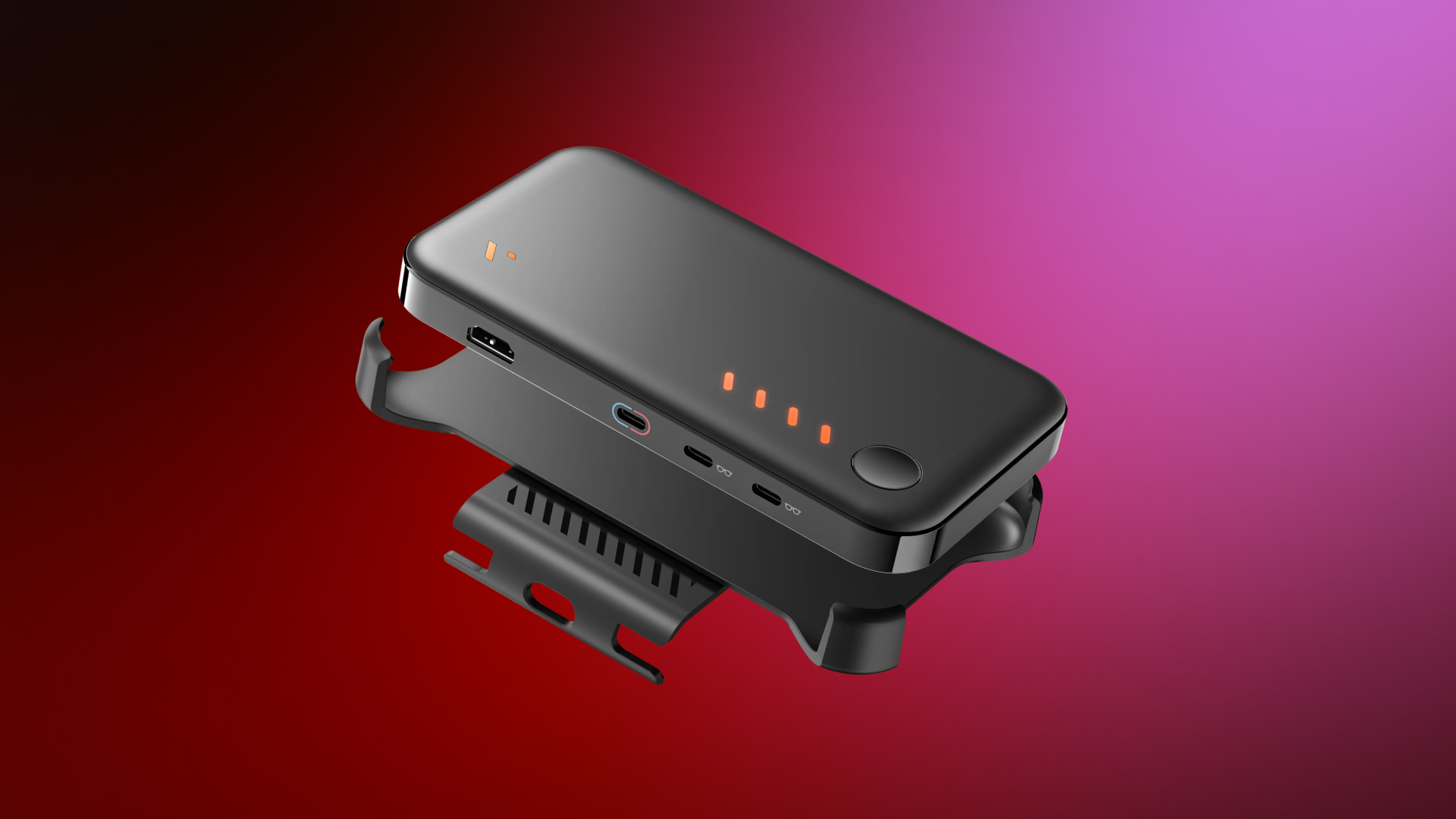
The Mobile Dock Mount for Switch 2 allows you to securely mount your Mobile Dock and Nintendo Switch 2 together. It is designed for easy transportation and convenient use, keeping both devices neatly assembled as a single unit.
Please note that this mount is only designed for use with the Nintendo Switch 2. It is not compatible with the first-generation Nintendo Switch.
| Dimensions | 171.7 × 95.0 × 24.7 mm (Mobile Dock Case) 68.1 × 121.2 × 19.7 mm (Switch 2 Mount) |
|---|---|
| Weight | 69.98g |
| Material | PA66 (Mobile Dock Case) PA66, TPE (Switch 2 Mount) |
Instructions
The Mobile Dock Mount for Switch 2 consists of two parts:
- A larger case that wraps around the Mobile Dock snugly at all four corners
- A thinner mount for the Nintendo Switch 2
To Attach the Mount:
- Hold the Mobile Dock and its corresponding case. The case has port markings that align with the ports on the Mobile Dock. Match these markings to ensure the correct orientation. Slide one of the longer sides of the Mobile Dock into the case, then press the other side in until it fits securely.
- Locate the bottom edge of the Switch 2. You’ll find two notches that align with the small protrusions on the mount. There is also a cutout that exposes the USB-C port. Align the bottom edge first, then press the top part in to snap it into place.
- Slide the Mobile Dock down into the mounted Switch 2 from the top. Make sure you’re inserting it in the correct orientation for a snug, secure fit. Use the beveled edges (not the square corners) as a guide to help align and insert properly.
To Remove the Mount:
- First, separate the Mobile Dock from the Switch 2 by sliding it upward.
- To remove the dock case from the Mobile Dock, gently bend one side of the case outward, then lift the Dock out.
- To remove the mount from the Switch 2, grip the top edge of the mount and gently pull it away from the device.
Please note: When using the Mobile Dock, handheld mode is disabled. Detach the Joy-Cons or use a wireless controller to play your Switch 2 while docked.
Mobile Dock Mount for Switch
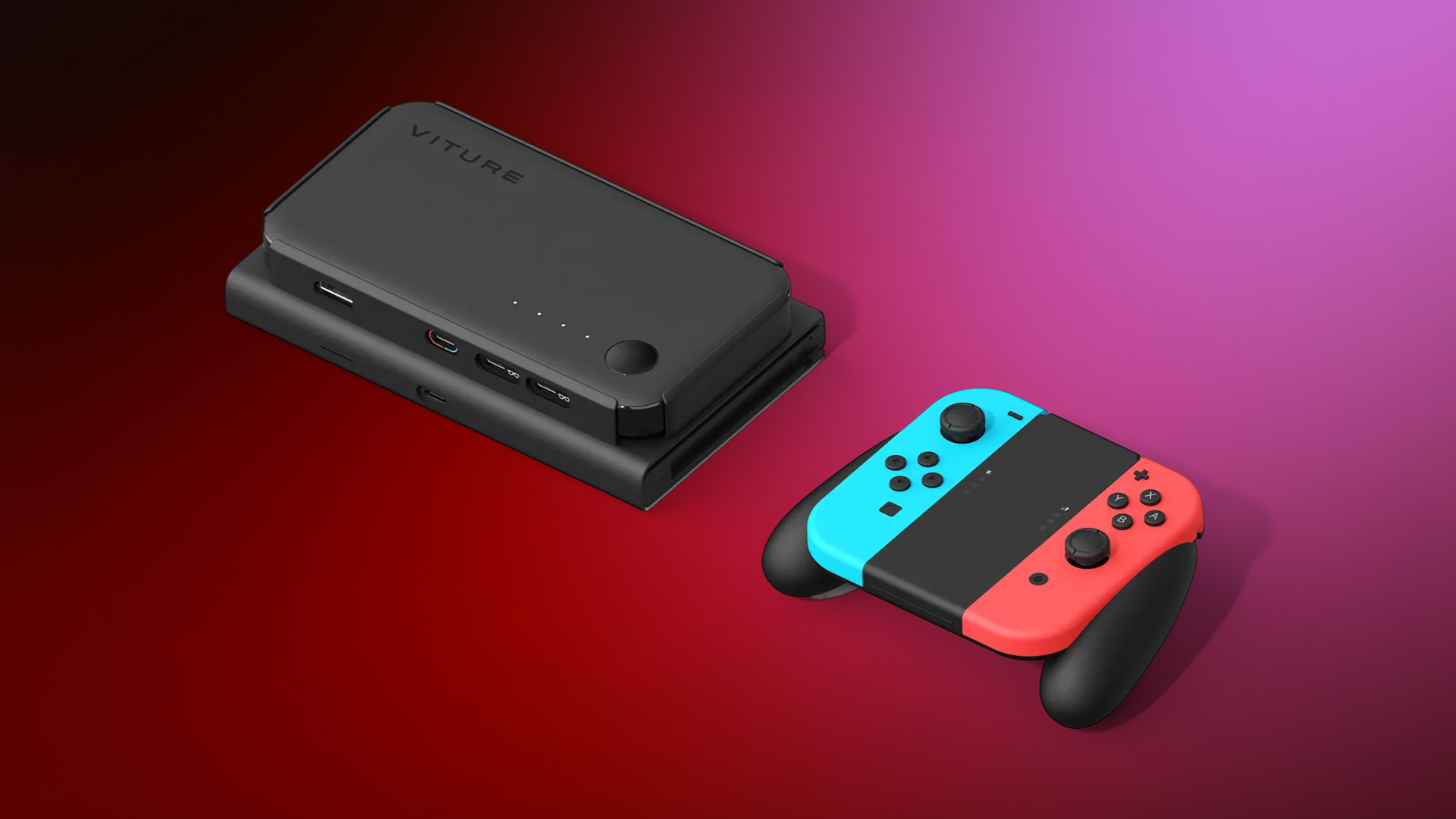
Compatibility: VITURE Pro Mobile Dock, VITURE One Mobile Dock
The Mobile Dock Mount for Switch allows you to conveniently mount your Mobile Dock directly to your Nintendo Switch for ease of carry and storage — just slip it on, connect, and start playing.
Get Mobile Dock Mount for Switch.
| Dimensions | 173.0 × 104.0 × 37.1 mm |
|---|---|
| Weight | 62g |
| Material | PC |
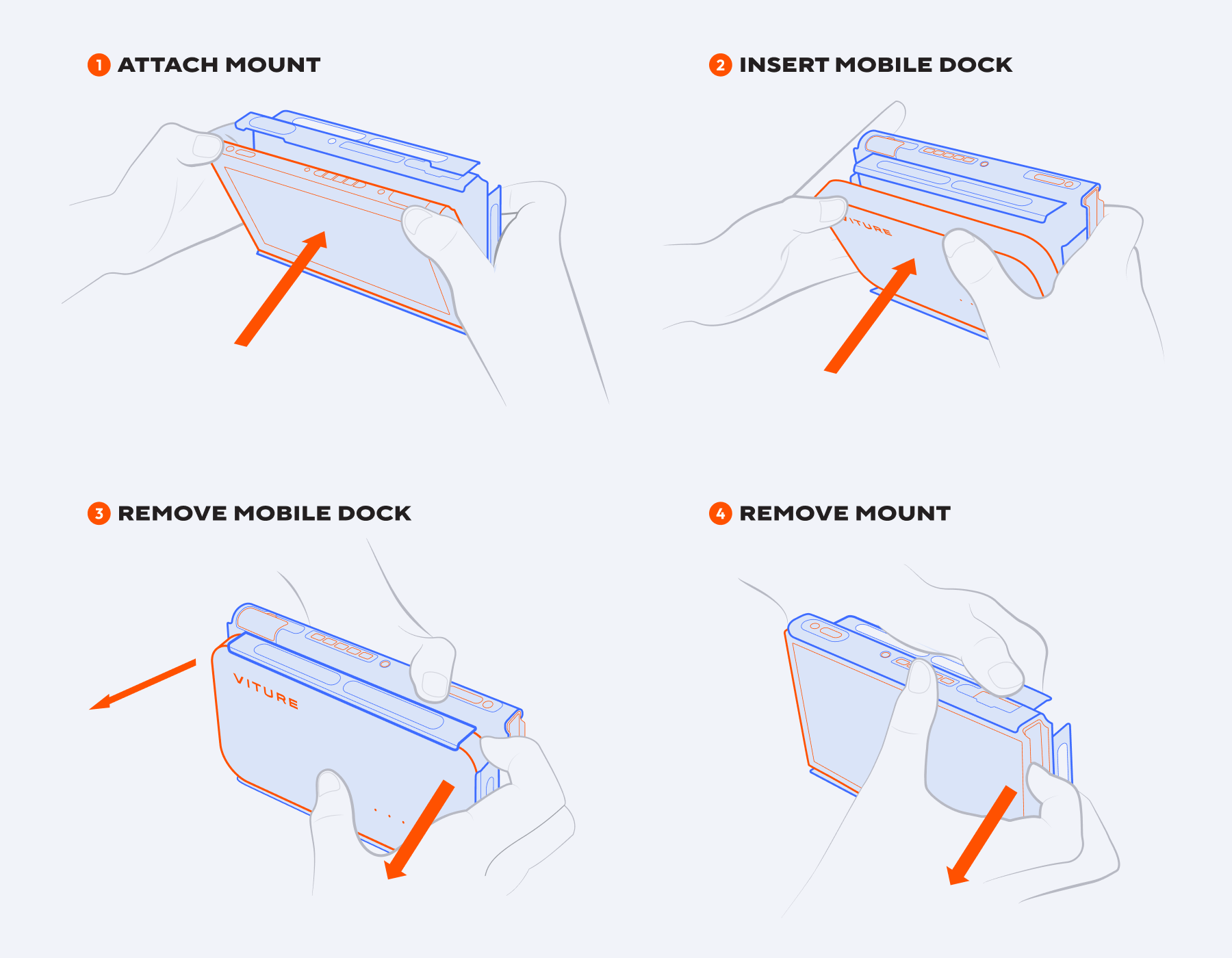
To attach or remove the Dock Mount:
- Attach Mount to Nintendo Switch.
- Insert Mobile Dock.
- Remove Mobile Dock.
- Remove Mount from Nintendo Switch.
Mobile Dock Mount for Steam Deck
Compatibility: VITURE Pro Mobile Dock, VITURE One Mobile Dock
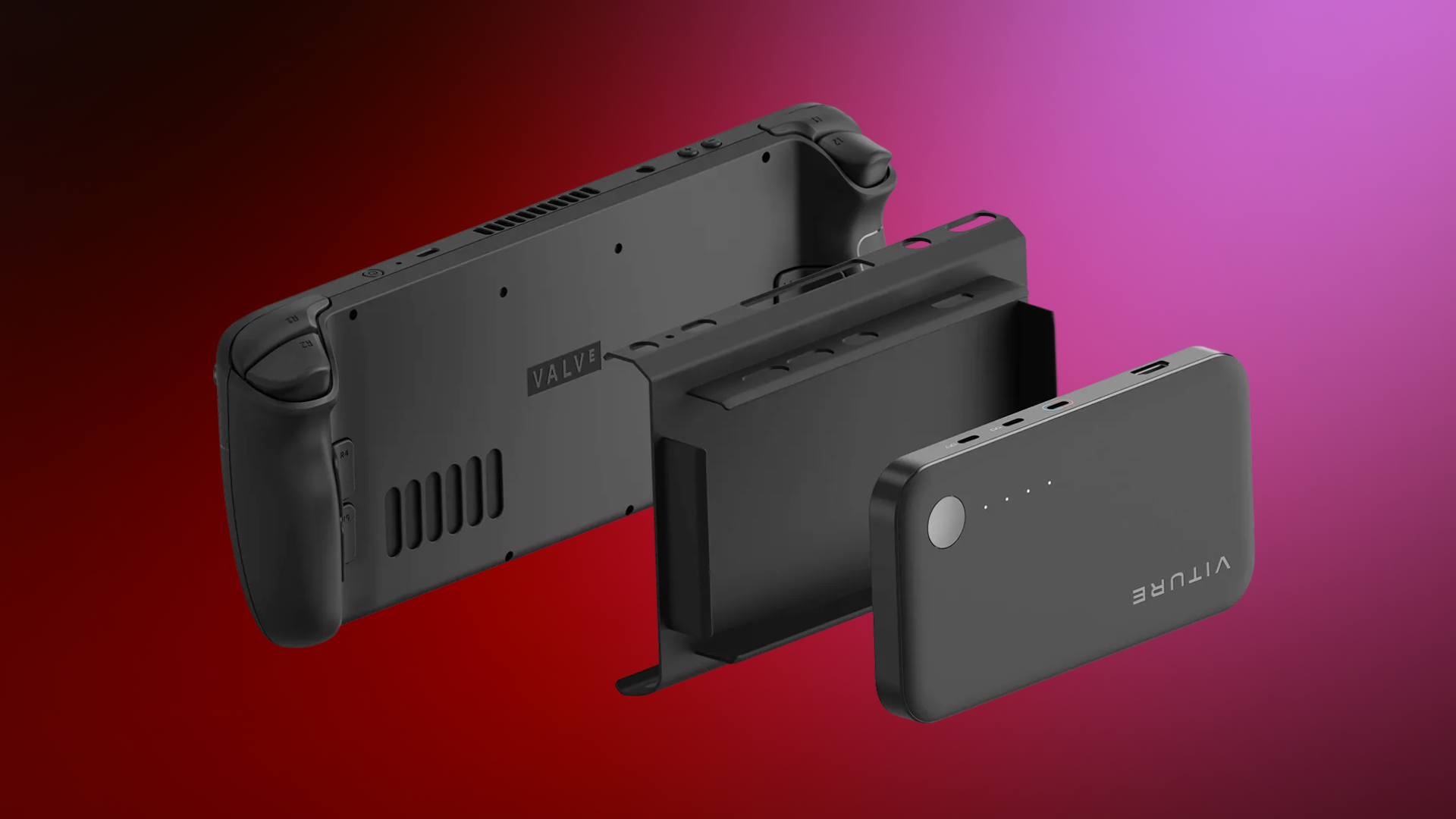
The Mobile Dock Mount for Steam Deck allows you to conveniently mount your Mobile Dock directly to your Steam Deck for ease of carry and storage — just slip it on, connect, and start playing.
| Dimensions | 176.0 × 120.0 × 41.0 mm |
|---|---|
| Weight | 66.1g |
| Material | PC |
To attach or remove the Dock Mount:
- Attach Mount to Steam Deck.
- Insert Mobile Dock.
- Remove Mobile Dock.
- Remove Mount from Steam Deck.
Tech Specs
| VITURE Pro Mobile Dock | VITURE One Mobile Dock | |
|---|---|---|
| Dimensions | 167 × 90.4 × 17.5 (mm) | 167 × 90.4 × 17.5 (mm) |
| Weight | 359g | 361g |
| HDMI Input | HDMI 1.4 3D: Up to 3840×1080@60Hz 2D: Up to 1920×1080@120Hz[1] |
HDMI 1.4 3D: Not supported 2D: Up to 1920×1080@60Hz |
| USB-C1 Video Input | 3D: Up to 3840×1080@60Hz 2D: Up to 1920×1080@120Hz |
3D: Not supported 2D: Up to 1920×1080@60Hz |
| USB-C1 Input | Supports PD 2.0, 20W (5V~3A, 9V~2.22A, 12V~1.67A, 15V~1.33A); Supports DP, HDCP 1.3. |
Supports PD 2.0, 20W (15V~1.2A); Supports DP, HDCP 1.3. |
| USB-C1 Output | 20W (5V~3A, 9V~2.2A, 12V~1.66A, 15V~1.33A) | 20W (5V~3A, 9V~2.2A, 12V~1.66A, 15V~1.33A) |
| USB-C2, USB-C3 Output | 5V~1A, Connect to XR Glasses. | 5V~1A, Connect to XR Glasses. |
| Compatibility of USB-C2 & USB-C3 | All VITURE XR Glasses Standard USB-C Display Including Monitors & Other XR/AR Glasses |
All VITURE XR Glasses except The Beast |
| Capacity | 13,000mAh | 13,000mAh |
| Battery Life[2] | Up to 8 hours with Nintendo Switch;[3] Up to 3 hours with Steam Deck; Up to 20 hours with HDMI devices. |
Up to 6 hours with Nintendo Switch; Up to 3 hours with Steam Deck; Up to 12 hours with HDMI devices. |
- The actual refresh rate and resolution output by the XR glasses depend on both the input source and the connected XR glasses.
- When connecting an Xbox or PS5 via HDMI, first set the refresh rate to Auto in the VITURE Beast XR glasses menu, then set 120Hz output on your console to play at 120Hz.
- Battery life when using with Nintendo Switch, Steam Deck, and HDMI devices is a test result for using VITURE One XR Glasses and should only be used as a reference. Usage time may vary slightly when using VITURE Pro XR Glasses or VITURE One Lite XR Glasses.
- The usage time provided in the tech specs is the maximum usage time that can be achieved under normal gaming or video viewing conditions. This also depends on the battery health and battery life of your device itself, as well as the game you are playing. Therefore, the specific usage scenario may differ from the maximum usage time we provide.