Mini Mobile Dock
Pro Mobile Dock, Gone Mini
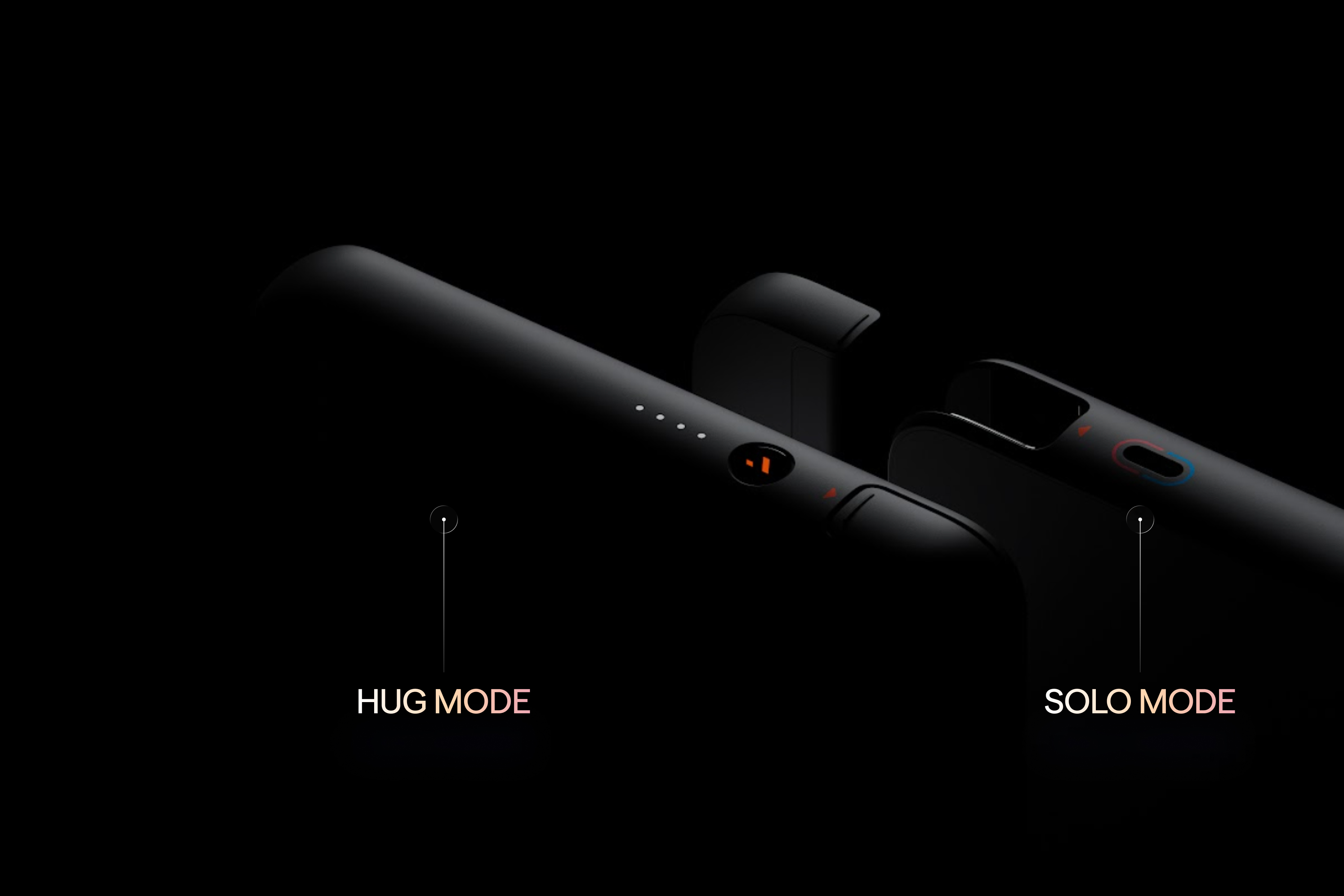
Pocket-sized Mobile Dock Mini, made for the single Switch and Switch 2 player on the go. Now you can charge while you play.
Play in Hug Mode & Solo Mode
Hug Mode — the full Switch 2 + XR gaming setup, all in one. Solo Mode — a compact USB-C hub for everyday use.
The lightest, smallest dock VITURE has ever made. 34% smaller than the Pro Mobile Dock, with a credit card-thin magnetic mount that attaches and detaches in one motion. The detachable adapter keeps it modular, stays when you need it, comes off when you don't.
Unlock SpaceWalker XR on iOS
Multi-Screen, 3DoF Pin Mode, Auto-Switch to 3D, VR Video, and direct glasses adjustment — all available in both Solo and Hug Mode.
Compatible with Switch and Switch 2, most USB-C smartphones, and USB-C devices. Extended battery life. Even works with external USB-C displays, including monitors and other display glasses.
Flip it on. Plug in. Keep playing.
Massive Switch Gaming. Even More Portable
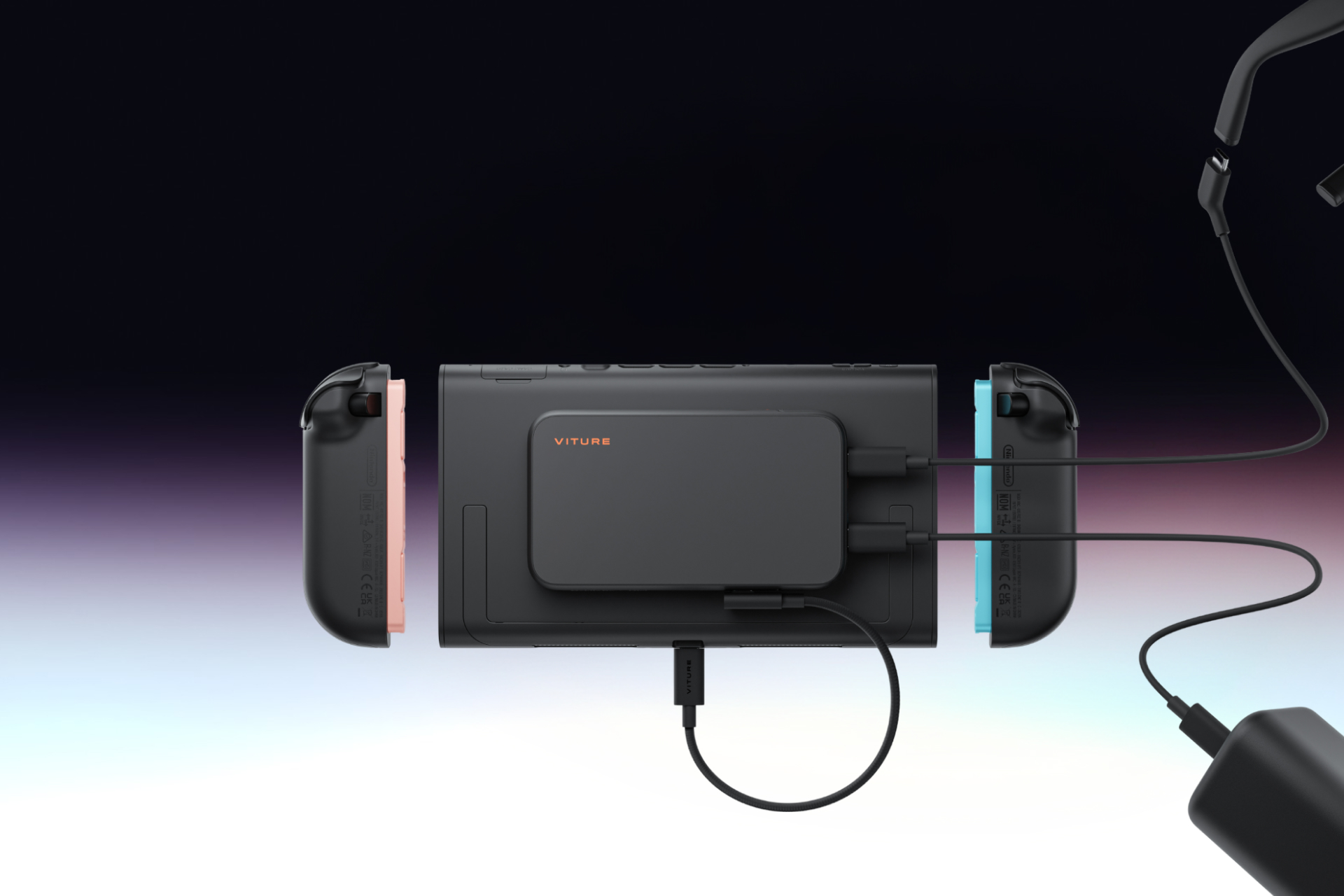
Made for Switch 2 & Switch
Every Switch 2 Title Runs in XR
Full compatibility with Switch 2 games. No workarounds.
Charge While You Play
Power your Dock Mini while gaming on Switch 2 & Switch. No battery anxiety.
Handheld Gaming and More
Also compatible with Steam Deck, ROG Ally, iPhone 15 and later (excluding iPhone 16e and iPhone Air), and most Android phones with DP output.
Mini. Mighty. Always Ready
34% Smaller Than Pro Mobile Dock
30% Lighter. The smallest dock in the VITURE lineup. Built for carry, not just storage.
Credit Card-Thin Magnetic Mount
Fits in a pocket, disappears in a bag. Snaps on and off in one motion — and stays on your Switch when you return it to the official dock.
Detachable Adapter
Hug Mode for the full Switch 2 + XR gaming setup. Solo Mode as a compact USB-C hub for everyday use.
Unlock SpaceWalker XR on iOS
Multi-Screen, 3DoF Pin Mode, Auto-Switch to 3D, VR Video, and direct glasses adjustment — in SpaceWalker for iOS, via both Solo and Hug Mode.
What's in the Box
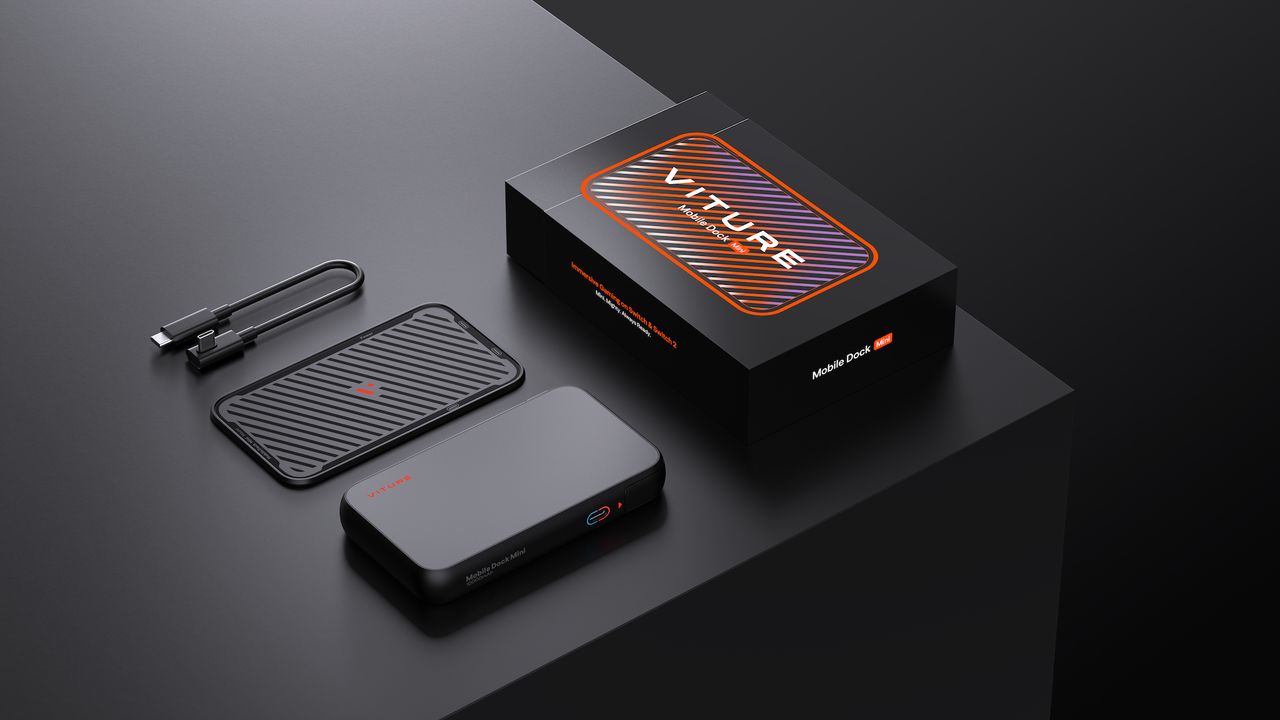
- Mobile Dock Mini (Detachable Adapter + Battery Module)
- USB-C Cable
- Magnetic Mount
- Magnetic Mount Alignment Guide
- Quick Start Guide
- Safety Guideline
Compatibility
The Mobile Dock Mini works with devices that output video over DisplayPort via USB-C (DP Alt Mode):
- Game consoles: Switch and Switch 2
- Handheld consoles: Steam Deck, ROG Ally, and other USB-C handhelds with DP output
- Phones: iPhone 15 and later (excluding iPhone 16e and iPhone Air), and most compatible phones with DP output
- XR Glasses: VITURE XR Glasses
Not sure about your device? Check the full, always-current list on our Compatibility page.
Play with Switch and Switch 2
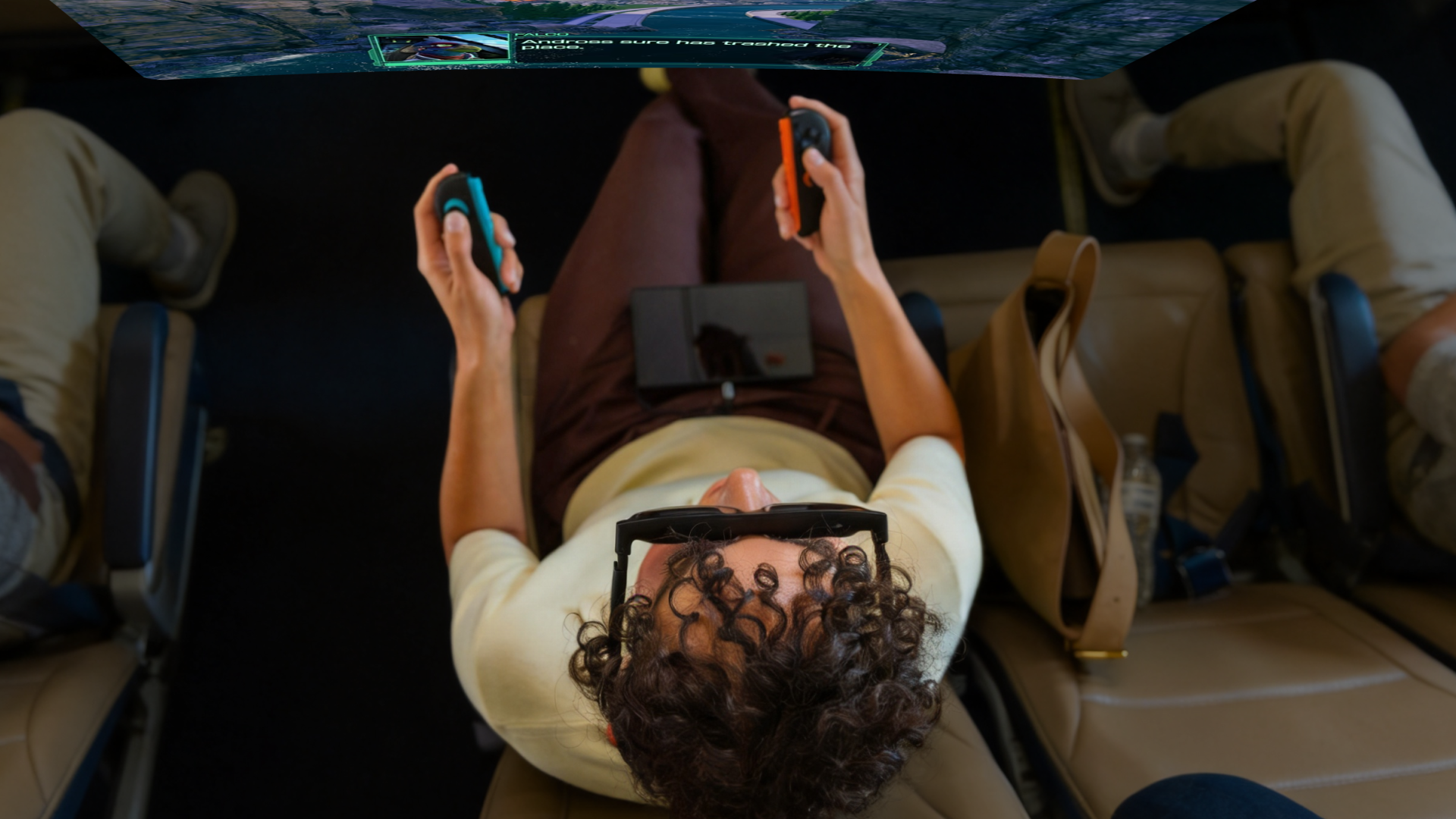
The Mobile Dock Mini is made for the Switch and Switch 2 player on the go. Both the Switch 2 and the original Switch connect in the same way, and the built-in battery powers your console — so you can play on a private big screen, anywhere, and charge while you play.
Want the dock to ride on the back of your console? Attach the included Magnetic Mount first — it's optional. See Magnetic Mount.
Connect and Play
- Plug one end of the USB-C cable into your Switch, and the other end into the Console Port.
- Connect your VITURE XR Glasses to the Glasses Port.
- The built-in battery powers your Switch, and your game appears in your glasses.
To charge while you play, plug a power source into the Charge Port.
Note:
When playing the Switch with the Mobile Dock Mini, you'll need to either:
- Detach the Joy-Con controllers; or
- Use a wireless controller such as the Switch Pro Controller.
Note: The Mobile Dock Mini attaches magnetically (not locked in place), so don't swing or shake your console forcefully while it's attached.
บทความแนะนำ
Magnetic Mount
Every Mobile Dock Mini ships with a Magnetic Mount in the box — no separate purchase needed.
Using it is optional: the Mobile Dock Mini works with or without the Mount. Attach it when you want the dock to ride on the back of your device.
It's a thin adhesive plate, the same size as the Mobile Dock Mini. Stick it onto the back of your device using the alignment guide, then snap the Mobile Dock Mini on and off whenever you play. Because it attaches with adhesive and holds magnetically, it works on your Switch, handheld, or phone — no device-specific brackets required.
The Magnetic Mount is thin and stays in place — your console still slides into its official Switch 2 Dock (or Switch Dock) for TV play.
Follow the alignment guide, so that the Mount doesn't cover the built-in kickstand.
Note: One-time adhesive — repositioning weakens it. Pick your spot before pressing down.
How to Attach
- Wipe the back of your console clean and dry.
- Lay the alignment guide in the box over the back of your Switch or Switch 2, line up the matching printed lines with the seams on the console's back, and hold it steady with one hand.
- Peel the liner off the Magnetic Mount, lower it into the guide's cutout, and press firmly for about 10 seconds.
- Peel off the guide — the Magnetic Mount stays on your console.
Once the Mount is on, just snap the Mobile Dock Mini onto it whenever you play — and lift it off just as easily.
Other Devices
For other devices, follow the same steps and attach the Magnetic Mount wherever works best for you. The alignment guide is designed for the Switch, so there's no official recommended position — just make sure the surface is flat, clean, and dry, and avoid covering any air vents.
Please note: The Mobile Dock Mini attaches magnetically (not locked in place). Don't swing or shake your device forcefully while it's attached.
Two Ways to Use It
The Mobile Dock Mini is modular: a video Adapter module and a detachable 10,000 mAh Battery module. Use them together for all-day play, or take just the Adapter module for the lightest setup.
Hug Mode (Combined Use)
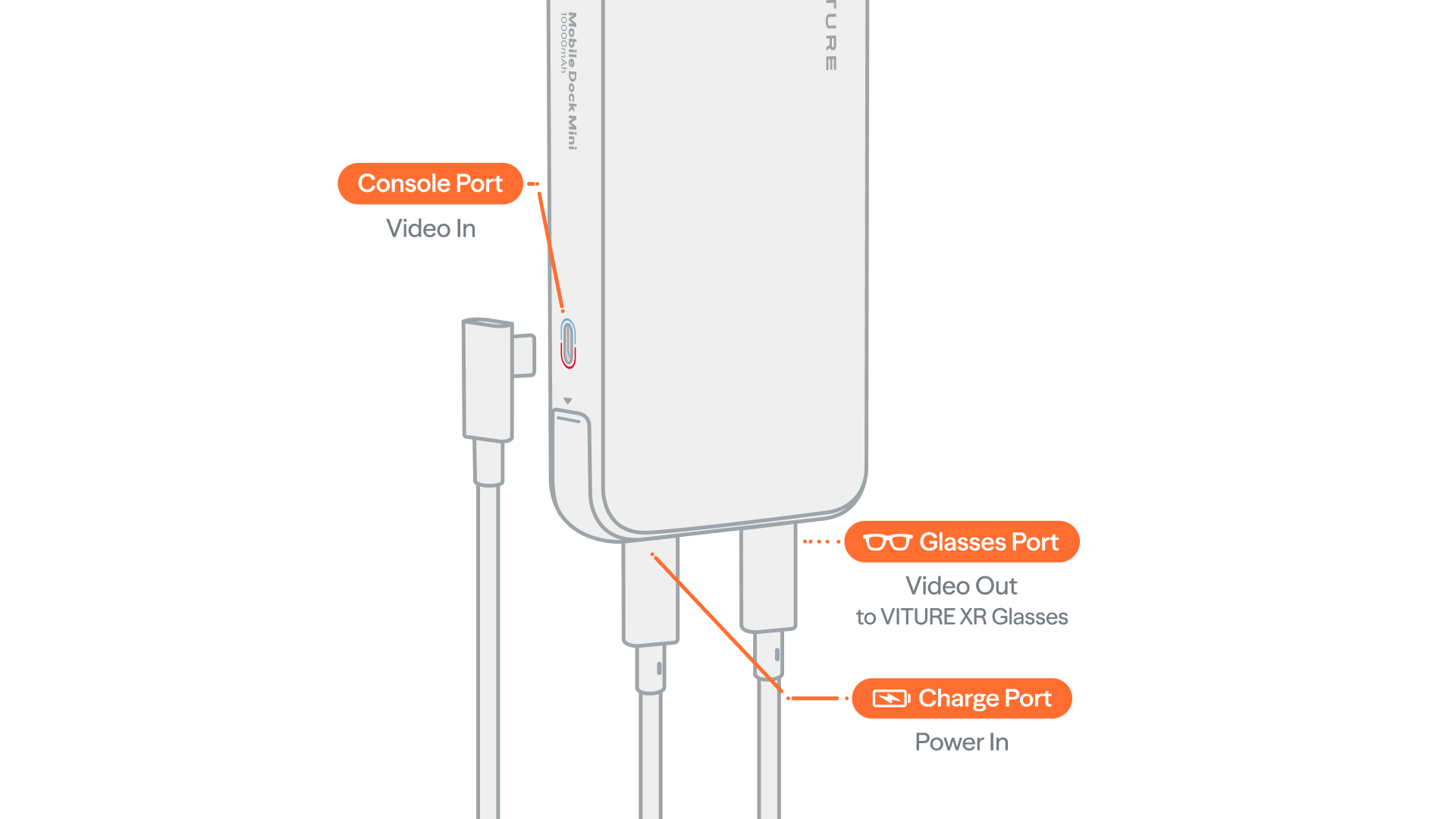
Ready to use, right out of the box. The built-in battery powers your device, and the whole dock snaps onto the back of it via the Magnetic Mount — one handheld unit, playable anywhere.
Connect your device to the Console Port and your VITURE XR Glasses to the Glasses Port — the same way as in Play with Switch and Switch 2. The Mobile Dock Mini turns on automatically once plugged in. Works with Switch and Switch 2, Steam Deck, ROG Ally and other USB-C handhelds, or a DP-output phone.
To charge while you play, plug a power source into the Charge Port — the battery and your device stay topped up.
Solo Mode (Adapter Only)
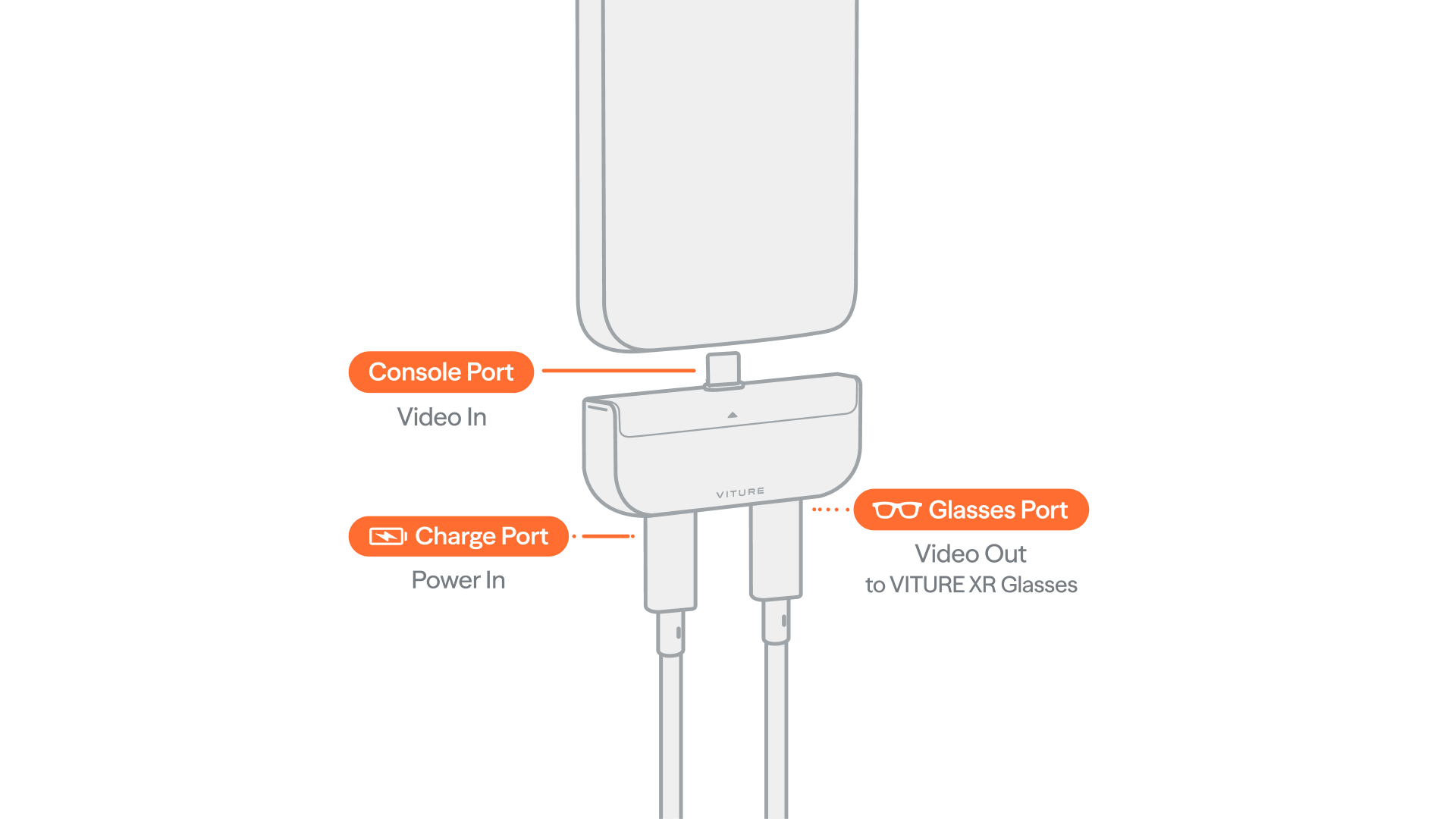
Travel light. Leave the Battery module behind and use the Adapter module as a slim video bridge.
- Pull the Adapter module off the Battery module.
- Plug one end of the USB-C cable into your device, and the other end into the Console Port.
- Connect your VITURE XR Glasses to the Glasses Port.
- Power:
- Switch and Switch 2 — plug a power source into the Charge Port. The Switch requires external power to output video.
- Phones and USB-C handhelds — no external power needed; plug a power source into the Charge Port anytime to charge while you play.
If you power Solo Mode from your own power bank, it needs to support PD and provide at least 45W (15V/3A) of output — enough to deliver 39W (15V/2.6A) to the Switch 2.
Tip: The Battery module also works on its own as a power bank — use the console port to charge your phone or other USB-C devices whenever you need to.
บทความแนะนำ
Battery
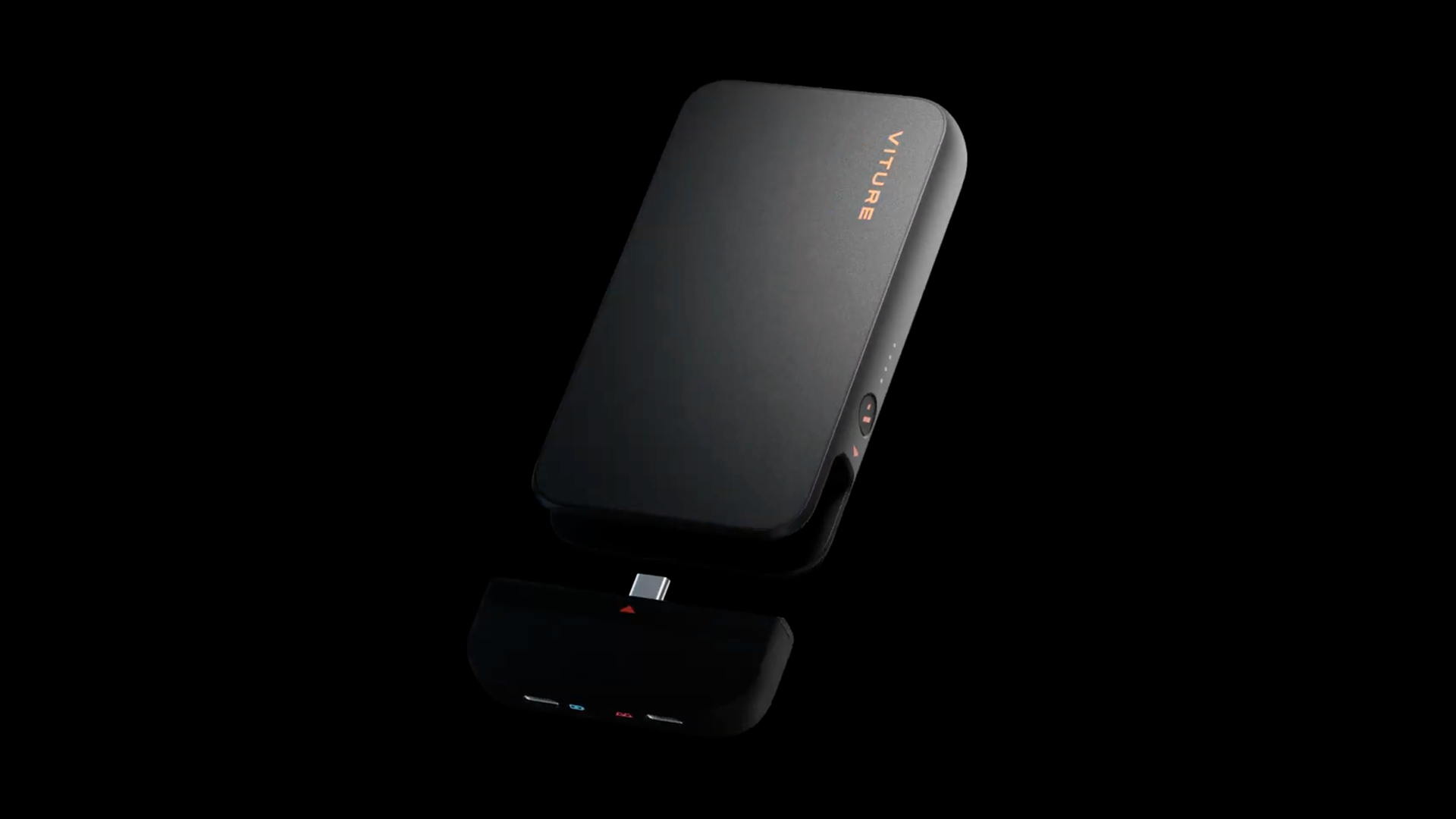
Battery Level Indicators
- 4 lights: 75–100%
- 3 lights: 50–75%
- 2 lights: 25–50%
- 1 light: 11–25%
- 1 light blinking: low battery (3–11%)
When the battery drops to 3% or below, the Mobile Dock Mini powers off automatically.
Charge Your Mobile Dock Mini
To charge your Mobile Dock Mini — or the Battery module on its own — connect the Battery module's Console Port to a power outlet using a USB-C cable and a charger that supports Power Delivery (PD). The battery indicator pulses while charging.
The maximum charging power is 27W. The Mobile Dock Mini is expected to be fully charged in about 2 hours 10 minutes.
Mobile Dock Series Comparison
| VITURE Mobile Dock Mini | VITURE Pro Mobile Dock | VITURE One Mobile Dock | |
|---|---|---|---|
| Dimensions | 128.4 × 72.6 × 18.7 (mm) | 167 × 90.4 × 17.5 (mm) | 167 × 90.4 × 17.5 (mm) |
| Weight | 249g | 359g | 361g |
| Modular Design (Detachable Battery) | ✓ | — | — |
| Charge While You Play | ✓ | — | — |
| Magnetic Mount | Included in the box, works on any device | Device-specific mounts, sold separately | Device-specific mounts, sold separately |
| Switch and Switch 2 | ✓ | ✓ | Switch only |
| HDMI Input | — | HDMI 1.4 3D: Up to 3840×1080@60Hz 2D: Up to 1920×1080@120Hz[1] |
HDMI 1.4 3D: Not supported 2D: Up to 1920×1080@60Hz |
| USB-C Video Input | 3D: Up to 3840×1200@60Hz 2D: Up to 1920×1200@120Hz |
3D: Up to 3840×1080@60Hz 2D: Up to 1920×1080@120Hz |
3D: Not supported 2D: Up to 1920×1080@60Hz |
| Connect Two Pairs of XR Glasses | — | ✓ | ✓ |
| Battery Capacity | 10,000mAh | 13,000mAh | 13,000mAh |
- The actual refresh rate and resolution output by the XR glasses depend on both the input source and the connected XR glasses.
- When connected to an Xbox or PS5 via HDMI, VITURE Beast XR Glasses do not support 120Hz output.
Mobile Dock Mini Specifications
| VITURE Mobile Dock Mini | |
|---|---|
| Dimensions | 128.4 × 72.6 × 18.7 (mm) |
| Weight | 249g |
| Video Input | USB-C / DisplayPort Alt Mode |
| Video Output | USB-C to VITURE XR Glasses; up to 3840×1200@60Hz (3D), 1920×1200@120Hz (2D) |
| USB-C Input (Whole Unit) | 45W max (15V⎓3A) |
| USB-C Output (Whole Unit) | 34W max (15V⎓2.26A); 5V⎓5A (dual USB-C ports) |
| Adapter Module — USB-C Input (Pass-through) | 5V⎓3A, 9V⎓3A, 12V⎓3A, 15V⎓3A, 20V⎓3.25A (65W max) |
| Adapter Module — USB-C Output (to Glasses) | 5V⎓1.5A |
| Battery Module — USB-C Input | 5V⎓3A, 9V⎓3A, 12V⎓2.25A, 15V⎓1.8A (27W max) |
| Battery Module — USB-C Output | 5V⎓3A, 9V⎓3A, 12V⎓2.25A, 15V⎓1.8A (27W max) |
| Capacity | Cell capacity 10,000mAh, rated capacity 6850mAh (5V⎓3A) |
| Operating Temperature | -10°C to 45°C |
Report Vulnerabilities
Security Breach Response
VITURE attaches great importance to security issues, and we welcome security researchers to provide us with feedback on potential security issues to improve the security of our products and services.
Vulnerability Response and Disclosure Process
Recipient
Monitor and assign received vulnerabilities in a timely manner.
Verification
Conduct technical verification of the effectiveness of vulnerabilities, confirming their exploitability and potential impact.
Solution Development
Provide effective fix solutions or risk remediation measures.
Affected Scope Confirmation
Investigate and confirm the complete scope of affected products.
Disclosure of Vulnerabilities
Review and publish security recommendations for the vulnerability after confirming the completion of all vulnerability response processes.
Vulnerability Submission
You can report vulnerabilities via email. The following are the detailed reporting methods:
Mailbox: happycustomer@viture.us
The email should include at least the following information:
- Your organization and contact information
- Products and versions affected
- Description of the potential vulnerability
- Information about known exploits
- Disclosure plans
- Additional information, if any
Attention
Although we encourage investigation of potential security breaches, we cannot tolerate any activity that may interfere with legitimate users or may violate applicable computer abuse, cyber security and data protection regulations. Therefore, the following activities are prohibited:
- Modification or destruction of data
- Service disruption or degradation, such as DoS
- Disclosure of personal, proprietary or financial information
Response Time
Upon receipt of the vulnerability you have submitted, we will send you a notification via email within 72 hours to commence the vulnerability response, along with confirmation and feedback on the nature of the vulnerability. The subsequent progress of the vulnerability will also be continuously updated in the email.
Actual vulnerability response time may vary depending on the risk level and complexity of the vulnerability.
Vulnerability Disclosure Instructions
When an external party discovers or is concerned about a potential vulnerability, but we have not yet fully confirmed it, we will disclose basic information about the vulnerability and our investigation via email.
The vulnerability information shall be kept confidential until VITURE releases the formal security advisory to the public.
When the vulnerability has been confirmed to be fixed, new firmware will be released, and a firmware update change log will be published, containing a description of the vulnerabilities that have been solved.
Product Support Policy
We strive to provide continuous security updates for our products. The security updates generally include the latest patches, vulnerability fixes, and other security improvements. We will maintain security updates for at least half a year from the launch date of a product. However, the security update situation may vary by product, so please pay attention to our announcements.
This page is reviewed on a regular basis. Any change to this policy will apply only to products released after the date of the change.