HDMI to USB-C Adapter Cable
HDMI to USB-C Adapter Cable
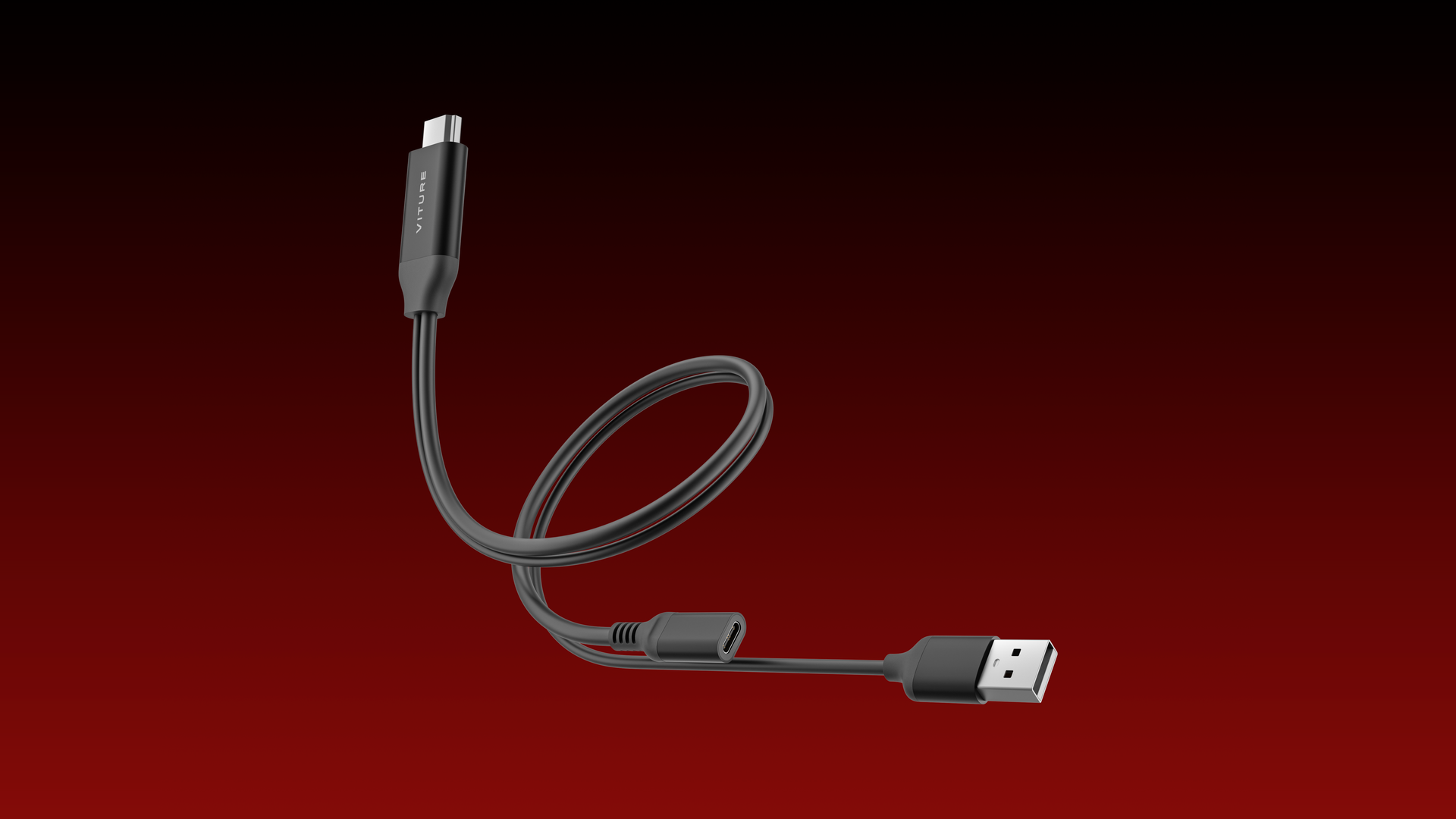
The VITURE HDMI to USB-C Adapter Cable is the bridge between your consoles, PCs, and VITURE XR Glasses. PlayStation, Xbox, desktop PCs, and laptops — if it has an HDMI output port, it's ready for a giant, private screen. No USB-C video port needed.
It works with all VITURE XR Glasses, supporting 3D Mode, 120Hz, and 1200p.
One simple Y-shaped cable does it all: the HDMI connector carries the picture, the USB-A connector powers your glasses, and the USB-C port connects to your XR Glasses. On Windows PCs, the USB-A connector also carries data — bringing SpaceWalker and Immersive 3D to PCs without a USB-C video port.
One cable. Your consoles and PCs. The whole VITURE XR Glasses lineup.
Important: Connect HDMI, USB-A, and your XR Glasses in the order described in Connect to Your Device.
บทความแนะนำ
Key Features
One Cable for Every VITURE XR Glasses
Pro 2, The Beast, Luma Series — the adapter cable works with all VITURE XR Glasses and keeps what makes them great: 3D Mode, 120Hz, and 1200p. Enjoy up to 1920×1200 @ 120Hz in 2D and up to 3840×1080 @ 60Hz in 3D.
Available resolutions and refresh rates depend on your device's video output and your settings.
Console Gaming, Supersized
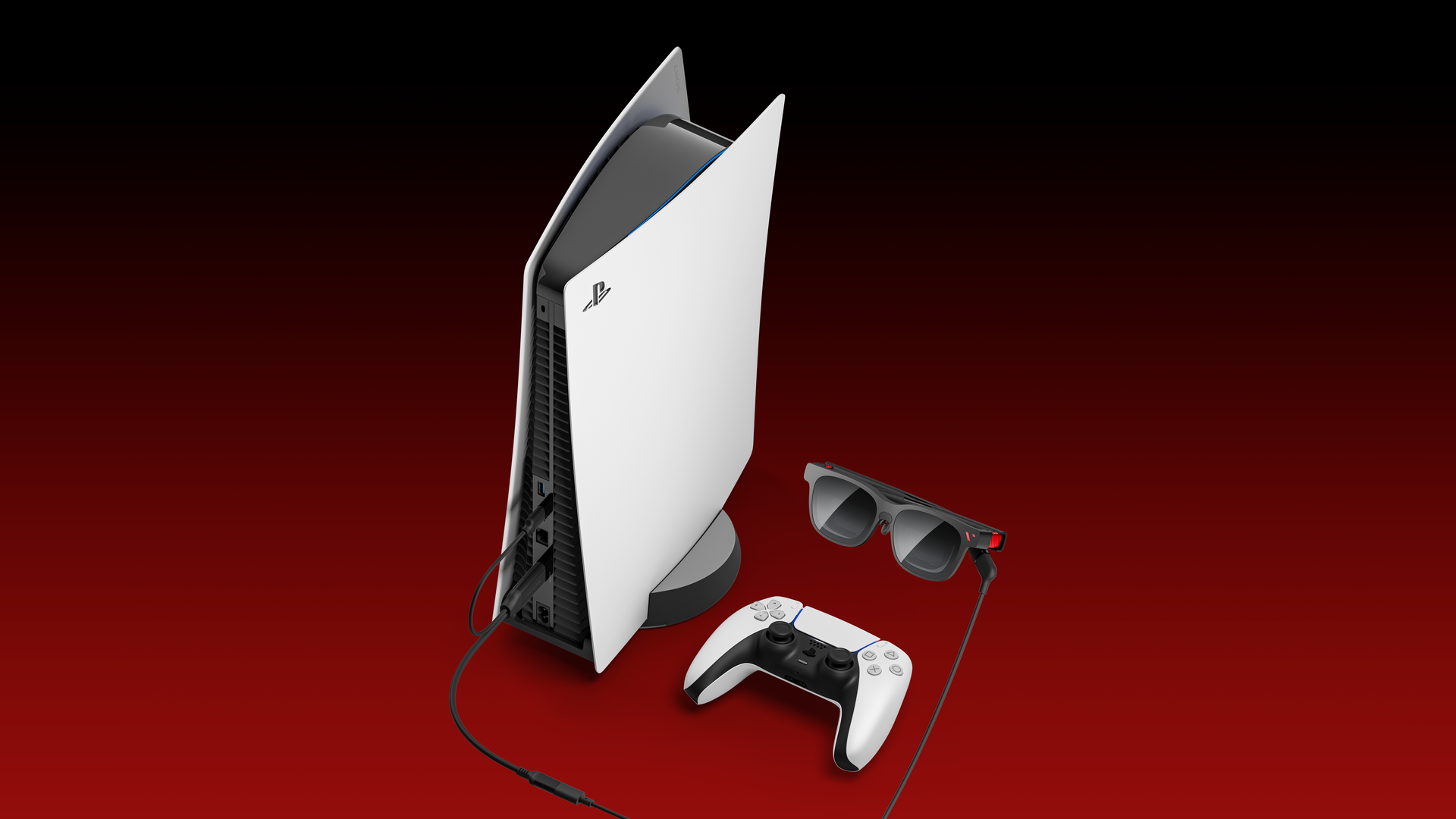
Connect your PlayStation 5 or Xbox Series X|S and turn any room into your own private big screen. No TV, no fighting over the remote — just plug in and play.
Your PC, Unlocked for XR
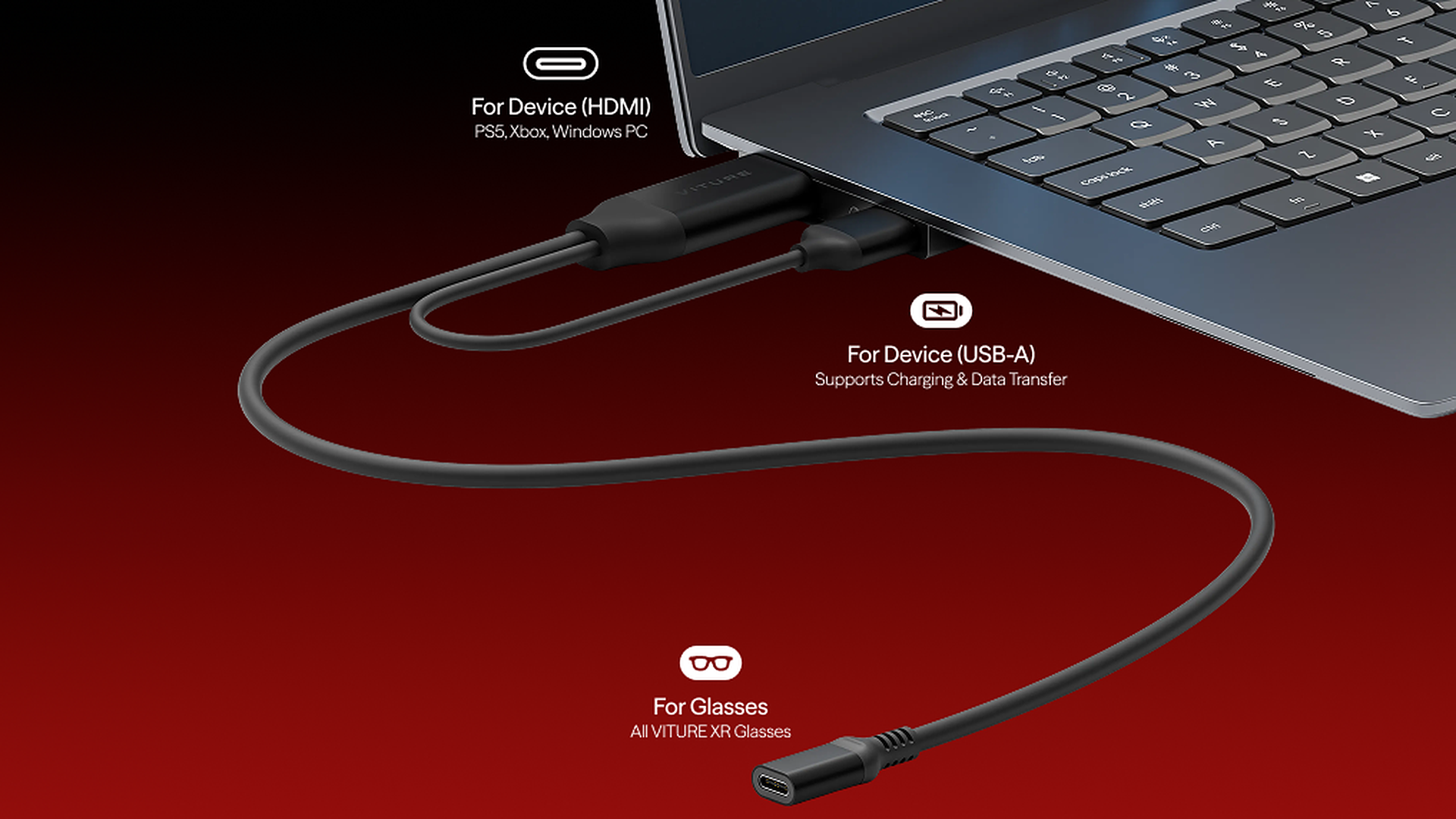
Desktop PC, or a laptop without a USB-C video port? The adapter cable sends video over HDMI and data over USB-A, bringing SpaceWalker and Immersive 3D to your Windows PC: multiple virtual screens, real-time 2D-to-3D conversion, and glasses controls, all from your computer.
Discover more at SpaceWalker for desktop and Immersive 3D for desktop
Your Streaming Library, Ready to Watch
With HDCP 1.4 / 2.2 support, your favorite shows and movies from Netflix, Disney+, and other major streaming services play on your XR Glasses.
Compatibility
The HDMI to USB-C Adapter Cable is compatible with all VITURE XR Glasses.
It works with game consoles and Windows PCs that have an HDMI output port.
| Device Type | Examples | USB-A Connection |
|---|---|---|
| Game consoles | PlayStation and Xbox consoles with HDMI output, such as PlayStation 5, Xbox Series X, and Xbox Series S | Power only |
| Windows desktop PCs | Desktop PCs with HDMI output | Power and data |
| Windows laptops | Laptops with both an HDMI output port and a USB-A port | Power and data |
Please note: The USB-A connector powers your XR Glasses only. It does not charge your device.
Connect to Your Device
Steps
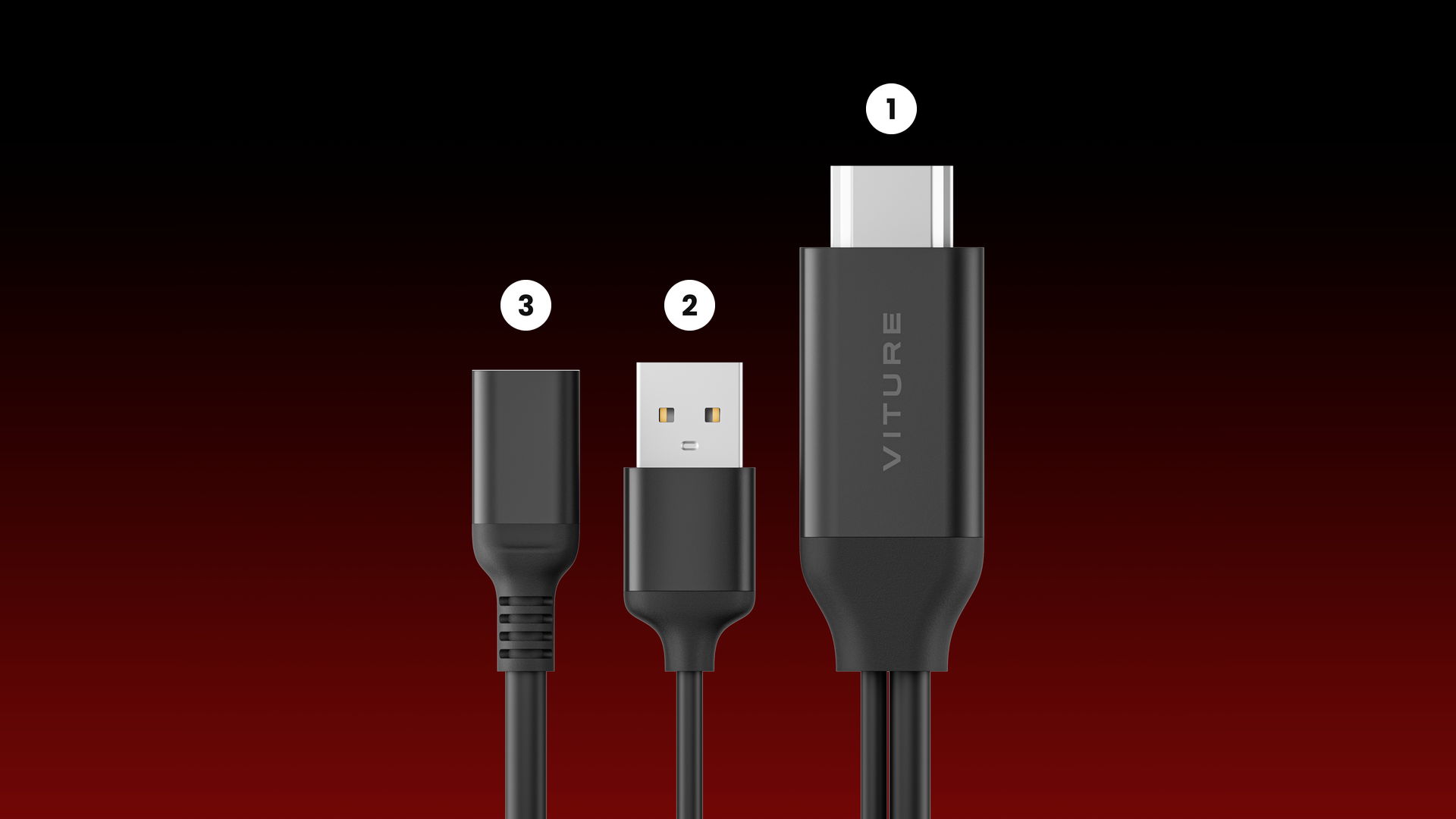
Follow this connection order:
- Connect HDMI to your device: Plug the HDMI connector into the HDMI output port on your device.
- Connect USB-A to your device: Plug the USB-A connector into a USB-A port on your device.
- Connect your XR Glasses: Plug the USB-C cable of your VITURE XR Glasses into the USB-C port on the adapter cable.
Notes
- Power source: For a stable power supply, we recommend plugging the USB-A connector into the same device as the HDMI connector — for example, a USB-A port on your console or PC chassis — rather than a power bank or charger. It powers your XR Glasses (5V/1A).
- Desktop PCs: If your PC has a dedicated graphics card, use a free HDMI port on the graphics card.
- Windows PCs: SpaceWalker and Immersive 3D communicate with your XR Glasses through the USB-A connection. Plug it directly into the PC, not into a hub or a charger.
Use with SpaceWalker and Immersive 3D
SpaceWalker and Immersive 3D for Windows need a connection that carries power, video, and data to your XR Glasses at the same time. Explore more at Check Interface Support on Windows.
If your PC doesn't have a USB-C port that supports DisplayPort Alt Mode — such as a desktop PC, or a laptop whose USB-C ports don't output video — the HDMI to USB-C Adapter Cable provides this connection:
- Video: HDMI connector
- Power and data: USB-A connector
The current versions of SpaceWalker and Immersive 3D for Windows support the adapter cable.
SpaceWalker for Windows
- Open multiple virtual screens in space
- Apply themes
- Adjust the XR Glasses' volume, brightness, and refresh rate
- Update your XR Glasses' firmware
Immersive 3D for Windows
- Automatically switch your XR Glasses to 3D Mode
- Update your XR Glasses' firmware
Steps
- Connect the adapter cable to your PC as described in Connect to Your Device.
- Launch SpaceWalker or Immersive 3D. The app will automatically detect your XR Glasses.
Discover more at SpaceWalker for desktop and Immersive 3D for desktop
Troubleshooting
Check what happens when you connect your XR Glasses — each symptom points to a different cause:
- Nothing happens at all (the glasses don't respond to any button): The glasses may not be receiving power. Make sure the USB-A connector is firmly plugged into your device, then try another USB-A port.
- The glasses respond, but the display stays black: Video isn't getting through. Make sure the HDMI connector is plugged into an HDMI output port and that your device is turned on. Then unplug all connectors and reconnect them in the order described in Connect to Your Device.
- The display works, but SpaceWalker can't connect (Windows PC): Data isn't getting through. Plug the USB-A connector directly into the same PC as the HDMI connector — not into a hub or a charger.
บทความแนะนำ
Tech Specs
| Item | Specification |
|---|---|
| Color | Black |
| Cable Length | HDMI connector to USB-C port: 45 cm USB-A connector to USB-C port: 80 cm |
| Weight | 51 g |
| Connectors | Input: HDMI (male) + USB-A (male) Output: USB-C (female) |
| HDMI Input | HDMI 2.0 3D: Up to 3840×1080 @ 60Hz 2D: Up to 1920×1200 @ 120Hz |
| USB-A | USB 2.0 Power: 5V/1A (powers the XR Glasses) |
| USB-C Output (XR Glasses) | DP 1.4 (DP Alt Mode), 5V/1A 3D: Up to 3840×1080 @ 60Hz 2D: Up to 1920×1200 @ 120Hz |
| HDCP | HDCP 1.4 / 2.2 |
| HDR | Supported |
| Storage Temperature | -20°C to 60°C |